Symptoms & Diagnosis
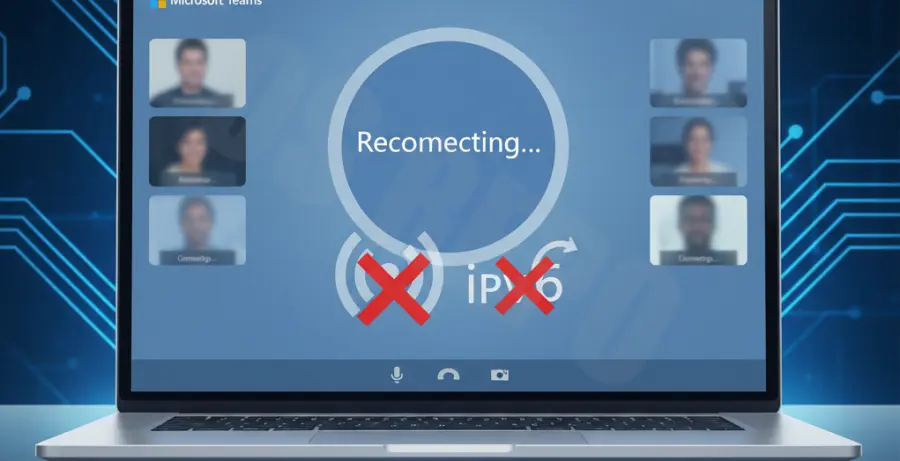
Microsoft Teams users often experience sudden call drops or a persistent “Reconnecting” banner even when their internet signal appears strong. This specific issue frequently stems from how modern routers and Windows handle IPv6 traffic during high-bandwidth activities like video conferencing.
Common symptoms include your WiFi remaining connected while Teams loses audio, or the application failing to switch back to a stable state after a brief signal dip. If other web pages load but Teams fails, the IPv6 handshake is likely the culprit.
To confirm the diagnosis, check if your connection stabilizes when using a mobile hotspot or a wired Ethernet cable. If the issue is localized to your WiFi network, disabling IPv6 can force the system to use the more mature and stable IPv4 protocol.
Troubleshooting Guide
Disabling IPv6 is a common fix for network instability in real-time communication tools. Follow these steps to adjust your network adapter settings on Windows.
| Step | Action |
|---|---|
| 1 | Press Win + R, type ncpa.cpl, and hit Enter. |
| 2 | Right-click your active Wi-Fi adapter and select Properties. |
| 3 | Uncheck the box next to Internet Protocol Version 6 (TCP/IPv6). |
| 4 | Click OK and restart your Microsoft Teams application. |
For advanced users or IT administrators managing multiple devices, you can achieve the same result using PowerShell. This ensures the setting is applied correctly across the system interface.
# Disable IPv6 on the Wi-Fi adapter via PowerShell
Disable-NetAdapterBinding -Name "Wi-Fi" -ComponentID ms_tcpip6
After applying these changes, monitor your next Teams call. By forcing the traffic through IPv4, you eliminate the overhead and potential packet loss associated with IPv6 tunneling and DNS resolution issues.
Prevention
To prevent Teams WiFi drops from recurring, ensure your network drivers are always up to date. Manufacturers frequently release patches that improve how network cards handle modern protocols and power management.
Consider setting a static DNS, such as Google DNS (8.8.8.8) or Cloudflare (1.1.1.1), within your IPv4 settings. This bypasses unreliable ISP-provided DNS servers that often struggle during peak usage hours.
Lastly, check your router’s firmware. Many ISP-provided routers have “Smart Setup” features or poorly implemented IPv6 stacks that conflict with Microsoft’s media relay servers. Keeping your hardware updated is the best defense against connectivity issues.