Symptoms & Diagnosis
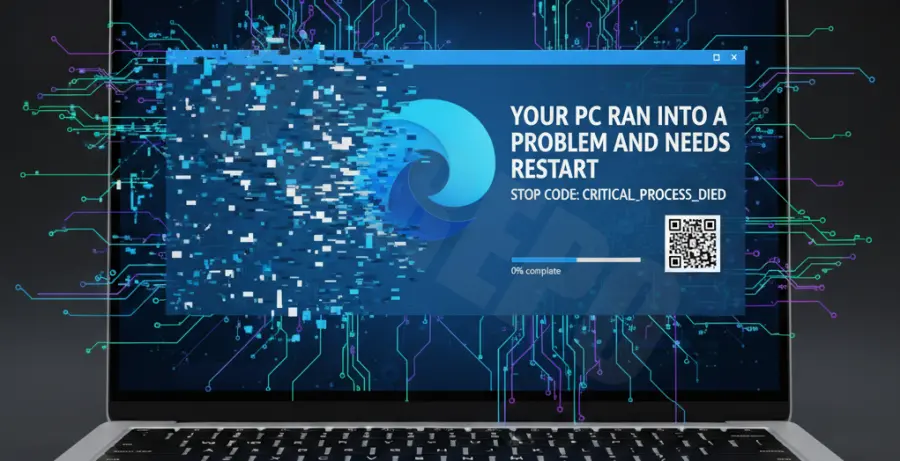
Microsoft Edge crashes leading to a Blue Screen of Death (BSOD) often stem from a conflict between the browser’s hardware acceleration feature and your Graphics Processing Unit (GPU) drivers.
When hardware acceleration is active, Edge offloads graphical tasks from the CPU to the GPU. If there is a driver mismatch or hardware instability, the system may trigger a kernel-level failure.
| Error Code | Common Trigger |
|---|---|
| VIDEO_TDR_FAILURE | GPU driver takes too long to respond during video playback. |
| DPC_WATCHDOG_VIOLATION | Conflict between the GPU driver and the system scheduler. |
| IRQL_NOT_LESS_OR_EQUAL | Memory access violation caused by faulty driver communication. |
You can diagnose this by checking if the BSOD occurs specifically when watching high-definition videos, playing browser games, or using WebGL applications.
Troubleshooting Guide
The most effective way to resolve these crashes is to disable hardware acceleration directly within the browser settings or via command-line switches if the browser won’t open.
Method 1: Edge Settings Menu
Open Microsoft Edge and click the three dots (…) in the top right corner. Navigate to Settings and select System and performance from the left sidebar.
Locate the toggle for “Use hardware acceleration when available” and switch it to Off. Click the Restart button that appears to apply changes.
Method 2: Command Line (Emergency Fix)
If Edge crashes immediately upon launch, you can bypass the GPU interface using a command-line flag. This is useful for regaining access to the settings menu.
msedge.exe --disable-gpuRun this command through the “Run” dialog (Win + R) to launch a stable session of Edge.
Method 3: Registry Editor
For enterprise environments, you can force-disable this feature via the Windows Registry. Navigate to HKEY_LOCAL_MACHINE\SOFTWARE\Policies\Microsoft\Edge.
Create a new DWORD (32-bit) Value named HardwareAccelerationModeEnabled and set its value to 0.
Prevention
To prevent future hardware-related BSODs, ensure your GPU drivers are always up to date. Visit the official website of your hardware manufacturer (NVIDIA, AMD, or Intel) to download the latest WHQL-certified drivers.
Keep Windows updated to the latest version to ensure kernel compatibility. Additionally, clearing your browser cache regularly can prevent corrupted data from causing resource spikes that lead to system instability.
If the issue persists after disabling acceleration, consider checking your physical hardware for overheating or RAM instability using diagnostic tools like MemTest86.