Immediate Fix
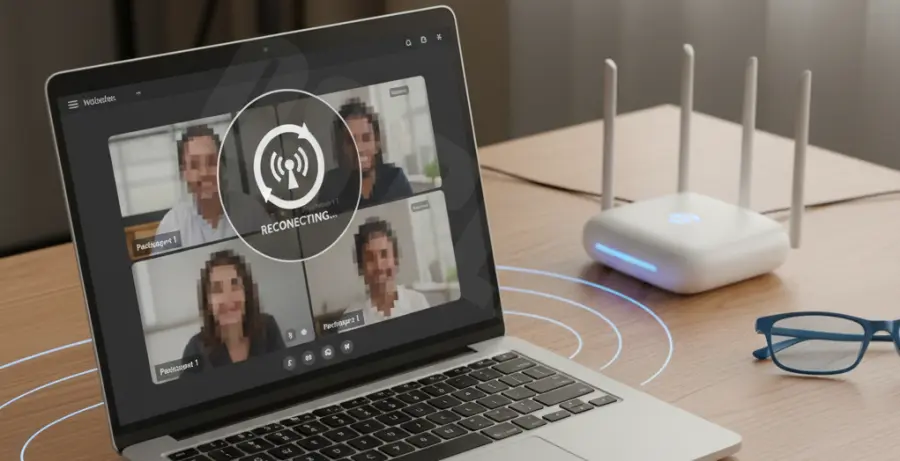
If your Microsoft Teams call drops suddenly, the fastest solution is to toggle your WiFi off and on or switch to a 5GHz band. 5GHz provides higher data rates and less interference than the standard 2.4GHz band used by many household appliances.
Another common culprit is background bandwidth usage. Ensure no other devices on your network are performing heavy downloads or streaming high-definition video during your meeting.
| Action | Benefit |
|---|---|
| Switch to 5GHz WiFi | Reduces signal interference from microwaves and Bluetooth. |
| Disable VPN | Eliminates unnecessary encryption overhead and routing hops. |
| Clear Teams Cache | Removes corrupted temporary files causing app instability. |
Finally, check your hardware. A simple restart of your router can clear the memory buffer and resolve IP conflicts that cause intermittent disconnects.
Technical Explanation
Teams calls are sensitive to “jitter” and “packet loss.” Unlike a streaming movie that buffers data, a live call requires real-time delivery. If a packet of data is lost over WiFi, Teams may struggle to re-sync, leading to a dropped call.
WiFi congestion occurs when multiple devices compete for the same “airtime.” In a home environment, walls and distance degrade the signal-to-noise ratio (SNR), making the connection unstable for high-bandwidth VoIP applications.
You can test your connection stability using the Command Prompt. Use the following command to check for packet loss to Google’s DNS as a baseline:
ping 8.8.8.8 -tIf you see “Request timed out” frequently, your home WiFi is failing to maintain a persistent link.
Alternative Methods
If software tweaks don’t work, consider a wired connection. Using a Cat6 Ethernet cable directly from your router to your laptop bypasses all WiFi-related interference and provides the most stable Teams experience.
Adjust Router QoS Settings
Many modern routers have a Quality of Service (QoS) setting. You can prioritize Microsoft Teams traffic over other types of data. This ensures that even if someone else is gaming, your voice and video packets get through first.
Update Network Drivers
Outdated wireless network adapter drivers can cause compatibility issues with the latest Teams updates. Visit your laptop manufacturer’s website to download and install the latest WLAN drivers.
Change WiFi Channels
If you live in an apartment, neighboring WiFi networks might be overlapping with yours. Access your router settings and manually select a less crowded channel (usually 1, 6, or 11 for 2.4GHz) to reduce collisions.