Immediate Fix
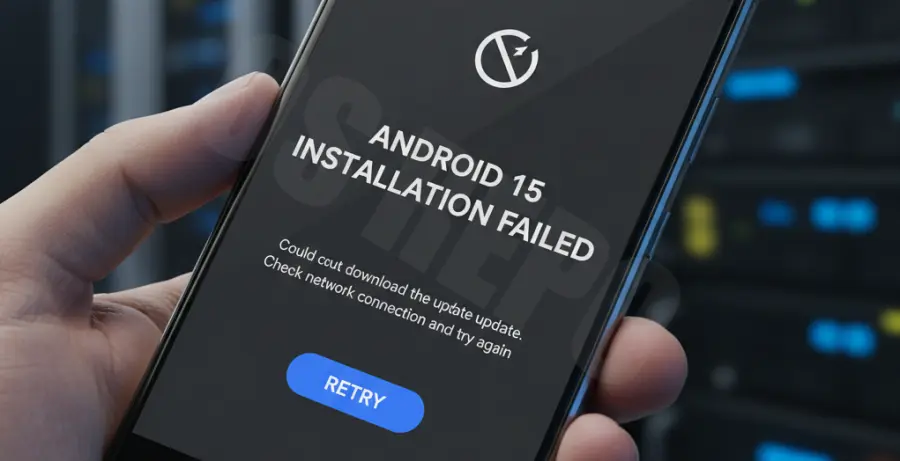
If you encounter a network error while downloading Android 15, the most effective immediate solution is to reset your device’s download manager and network state. This clear out corrupted temporary files that block the update handshake.
| Method | Action | Success Rate |
|---|---|---|
| Force Restart | Hold Power + Volume Up for 10 seconds | Moderate |
| Cache Clear | Wipe Google Play Services data | High |
| Network Reset | Reset Wi-Fi, Mobile & Bluetooth settings | High |
Start by toggling Airplane Mode on and off. This forces the device to re-authenticate with the nearest cell tower or Wi-Fi access point.
If that fails, use the following command via ADB on your computer to clear the Google Play Services cache, which often holds the “stuck” update state:
adb shell pm clear com.google.android.gmsTechnical Explanation
The “Update Failed” network error usually stems from a TCP Handshake Timeout or a Checksum Mismatch. When your device requests the Android 15 OTA (Over-The-Air) package, the server verifies your IP and device cryptographic signature.
If your local DNS is slow or filtering traffic, the connection to the Google Update Server (GVT1) may drop. This results in the generic network error message despite having a functional internet connection.
Congestion on CDN (Content Delivery Network) nodes during the initial Android 15 rollout can also lead to “HTTP 503 Service Unavailable” errors, which the Android OS translates as a network failure.
Alternative Methods
If standard OTA updates continue to fail, you can bypass the system updater entirely. Using the Android Flash Tool or ADB Sideload is the most reliable way to force the installation.
1. Use a Different DNS
Change your Wi-Fi settings to use Google’s Public DNS (8.8.8.8 and 8.8.4.4). This often resolves routing issues that prevent the update client from reaching the firmware repository.
2. ADB Sideloading
Download the official OTA image for your specific device model. Connect your phone to a PC, reboot into Recovery Mode, and select “Apply update from ADB.”
adb sideload ota_file_name.zipThis method circumvents the “Network Error” because the entire update package is transferred over a physical USB connection rather than unstable wireless protocols.
3. Toggle Battery Saver
Strangely, aggressive battery-saving modes can throttle background download processes. Ensure “Battery Saver” is disabled and your device is charged above 50% before initiating the Android 15 update again.