Symptoms & Diagnosis
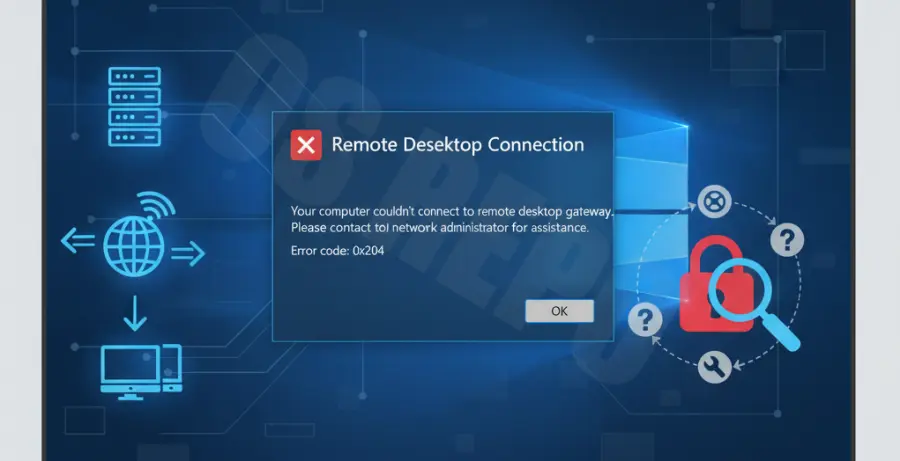
The Windows Server 2022 RDP Error 0x204 is a common connection timeout issue. It typically occurs when a client attempts to connect to a remote server but fails to establish a handshake within the allotted time.
Users usually encounter a pop-up message stating: “We couldn’t connect to the remote PC. This might be because the remote PC is turned off, not available on the network, or its remote access is not enabled.”
To diagnose the issue effectively, you should first identify where the communication break occurs. Use the following table to categorize potential causes:
| Category | Potential Cause | Verification Method |
|---|---|---|
| Configuration | RDP is disabled on the server. | Check System Properties. |
| Security | Firewall is blocking Port 3389. | Check Windows Defender Firewall rules. |
| Network | DNS resolution failure. | Ping server by IP vs. Hostname. |
| Services | Remote Desktop Services are stopped. | Check services.msc console. |
Troubleshooting Guide
Follow these steps in sequence to resolve the error. Start with the most common configuration issues before moving to deeper network troubleshooting.
Step 1: Enable Remote Desktop Access
Ensure that the server is actually configured to accept remote connections. On Windows Server 2022, navigate to Settings > System > Remote Desktop. Toggle “Enable Remote Desktop” to On.
Additionally, ensure that the users attempting to connect are added to the “Remote Desktop Users” group via the “Select users that can remotely access this PC” link.
Step 2: Configure Windows Firewall
The Windows Firewall often blocks the default RDP port (3389). You must ensure that “Remote Desktop” is allowed through the firewall for your specific network profile (Domain, Private, or Public).
You can quickly verify and enable the rule using the following PowerShell command in an elevated prompt:
Enable-NetFirewallRule -DisplayGroup "Remote Desktop"Step 3: Restart Remote Desktop Services
Sometimes the underlying services for RDP become unresponsive. Restarting the termservice can clear hung sessions and restore connectivity.
Execute these commands to restart the core RDP service:
net stop termservice
net start termservice
Step 4: Check for Port Conflicts
If you have modified the default RDP port, ensure the client is using the correct custom port (e.g., 192.168.1.10:3390). If using the default, ensure no other application is squatting on port 3389.
Run this command to check if the server is listening on the correct port:
netstat -an | findstr 3389Prevention
To prevent RDP Error 0x204 from recurring on Windows Server 2022, implement a static IP address strategy. Dynamic IP changes often cause clients to lose track of the server’s location.
Regularly audit your firewall rules, especially after Windows Updates. Updates can sometimes reset security policies or introduce new rules that conflict with existing RDP configurations.
Finally, utilize a VPN for remote access instead of exposing port 3389 directly to the internet. This reduces the risk of brute-force attacks which can overwhelm the RDP service and cause connection timeouts.