Symptoms & Diagnosis
Firefox high power usage often manifests as a sudden drop in laptop battery life or an audible increase in cooling fan speed. You might notice the browser becoming sluggish or unresponsive during heavy media playback.
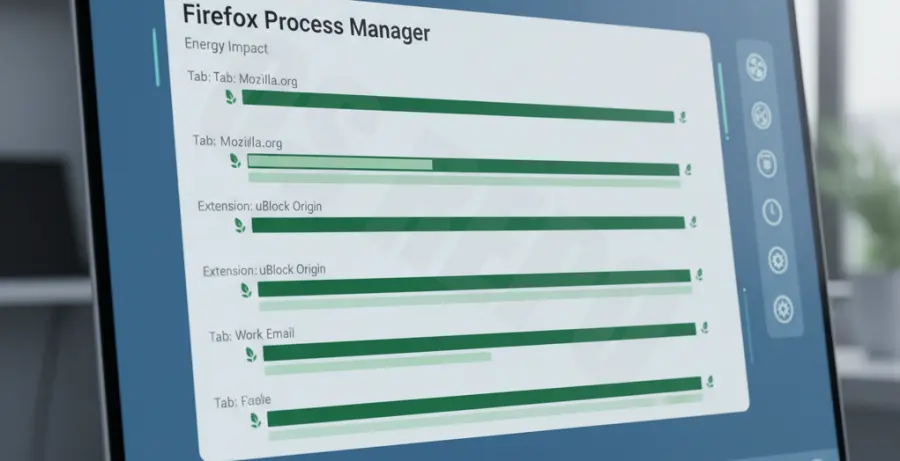
To diagnose the issue, you should use the built-in Firefox Task Manager (Process Manager). Type about:processes into your address bar. This tool provides real-time data on memory and CPU consumption per tab and extension.
| Metric | Normal Range | High Usage Sign |
|---|---|---|
| CPU Usage | 1% – 10% (Idle) | Constant >20% per tab |
| Memory | 100MB – 500MB | Exceeding 1GB on static pages |
| Energy Impact | Low | Consistently “High” in OS monitors |
Troubleshooting Guide
The first step in fixing battery drain is identifying the specific process causing the spike. Use the about:processes page to “Close Tab” on any entry consuming excessive CPU cycles.
Disable Hardware Acceleration
In some cases, the interaction between Firefox and your GPU drivers causes power leakage. Disabling hardware acceleration can force the browser to use more efficient processing paths for certain tasks.
# To reset Firefox profile via terminal (Linux/macOS)
firefox -safe-mode
Navigate to Settings > General > Performance. Uncheck “Use recommended performance settings” and then uncheck “Use hardware acceleration when available.” Restart the browser to apply changes.
Audit Browser Extensions
Legacy or poorly coded extensions are frequent culprits of background power consumption. Open about:addons and disable all extensions. Re-enable them one by one while monitoring the power usage in your OS activity monitor.
Refresh Firefox
If the high power usage persists, your profile may contain corrupted cache or preference files. Visit about:support and select “Refresh Firefox.” This restores the browser to its default state while keeping your essential data like bookmarks and passwords.
Prevention
Keep Firefox updated to the latest version to ensure you have the most recent energy-efficiency patches. Mozilla frequently releases optimizations specifically targeting macOS and Windows power management APIs.
Limit the number of active tabs. Even background tabs can consume energy if they execute periodic JavaScript tasks. Use the “Auto Tab Discard” extension to automatically suspend inactive tabs without closing them.
Finally, avoid running high-resolution video in multiple windows. Use the Picture-in-Picture mode, which is often more optimized for system resources than rendering a full browser UI for secondary video content.