Symptoms & Diagnosis
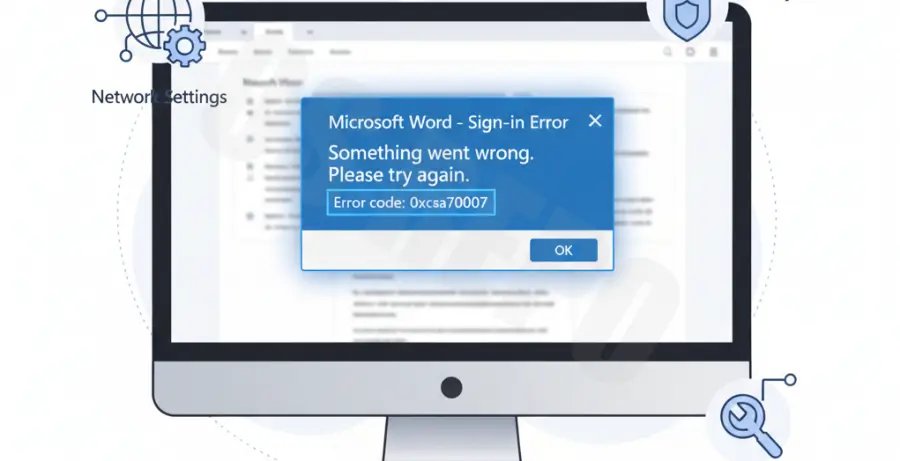
The Office 365 error code 0xcaa70007 is a common authentication failure that occurs when Microsoft Word or other Office apps cannot establish a secure connection with the login server. This usually happens during the modern authentication handshake.
Users often encounter this issue when their local network environment or Windows account settings interfere with the Web Account Manager (WAM) process. Below are the primary symptoms associated with this error:
| Symptom | Technical Behavior |
|---|---|
| Blank Login Box | The sign-in window appears but remains completely white or transparent. |
| Connection Timeout | A message stating “The request timed out” follows a long loading period. |
| Login Loop | The application asks for credentials repeatedly without proceeding to the document. |
Diagnosis often points to TLS protocol mismatches, corrupted identity caches, or restrictive firewall settings that block Microsoft’s authentication endpoints.
Troubleshooting Guide
To resolve error 0xcaa70007, follow these technical solutions in order. These steps address the most common points of failure in the Microsoft 365 login stack.
Step 1: Enable TLS 1.2 Protocol
Modern Microsoft 365 authentication requires Transport Layer Security (TLS) 1.2. If this is disabled in your Internet Options, the login request will fail instantly.
Open the Control Panel, go to Internet Options, click the Advanced tab, and ensure “Use TLS 1.2” is checked. Apply the changes and restart Word.
Step 2: Clear the Identity Cache
Corrupted cached credentials can prevent the Web Account Manager from refreshing your token. You can clear the identity cache by running the following commands in a terminal to remove the specific folder contents.
# Close all Office Apps before running
dir %localappdata%\Microsoft\IdentityCache
# Delete the content of the IdentityCache folder
del /F /S /Q %localappdata%\Microsoft\IdentityCache\*
Step 3: Reset the WAM (Web Account Manager)
Sometimes the WAM package itself becomes unresponsive. You can re-register the Microsoft.AAD.BrokerPlugin which handles Office logins using PowerShell.
Add-AppxPackage -Register "$env:windir\SystemApps\Microsoft.AAD.BrokerPlugin_cw5n1h2txyewy\AppxCombinedManifest.xml" -DisableDevelopmentMode -ForceApplicationShutdownStep 4: Remove “Work or School” Account
Navigate to Windows Settings > Accounts > Access work or school. Select the account causing the error and click Disconnect. Restart your PC, then sign back into Word to re-establish the connection.
Prevention
Preventing error 0xcaa70007 involves maintaining a healthy authentication environment and ensuring your network allows Microsoft traffic.
Ensure that your system clock is synchronized with the internet time. Authentication tokens are time-sensitive, and a drift of even a few minutes can trigger security errors.
Update Microsoft 365 apps regularly. Microsoft frequently releases patches for the “Modern Authentication” flow that resolve known bugs with specific Windows builds.
If you are behind a corporate proxy, ensure that the URL *.microsoftonline.com is whitelisted and not subject to SSL inspection, which can strip necessary security headers from the login request.