| Issue | Common Cause | Quick Fix |
|---|---|---|
| Error 1603 | Permissions or corrupted files | Run as Admin / Clean Temp Folder |
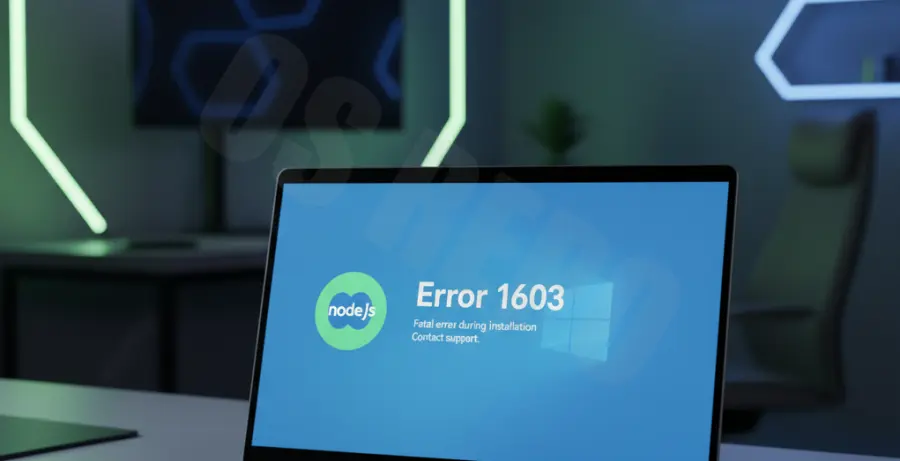
What is Node JS installation error 1603?
The Node JS installation error 1603 is a generic Windows Installer (MSI) error code that indicates a “Fatal error during installation.” This typically occurs when the installer encounters a system-level restriction.
Common triggers include insufficient folder permissions, a corrupted previous installation, or an antivirus program blocking the Windows Installer service. Because it is a general error, it requires a systematic approach to resolve.
Step-by-Step Solutions
1. Run the Installer as Administrator
The most common cause for error 1603 is lack of administrative privileges. Windows may block the installer from writing files to the “Program Files” directory.
Right-click the Node.js .msi file and select “Run as Administrator.” If that option isn’t available, open the Command Prompt as Administrator and launch the file manually:
msiexec /i node-vxx.xx.x-x64.msi2. Perform a Clean Uninstall of Previous Versions
Conflict between existing Node.js files and the new installer often triggers 1603. Use the Windows Control Panel to uninstall any current version of Node.js.
After uninstalling, manually delete the following directories if they still exist:
C:\Program Files\nodejs
C:\Users\[Your-Username]\AppData\Roaming\npm
3. Clear the Temporary Files Folder
Windows stores temporary installation data in a specific folder. If this folder is full or contains corrupted setup files, the installation will fail.
Press Win + R, type %temp%, and hit Enter. Delete all files and folders within this directory. This clears out cached installer data that might be causing the conflict.
4. Verify Folder Permissions
Ensure that the “SYSTEM” account has full control over the installation folder. Navigate to C:\Program Files, right-click the folder where you intend to install Node.js, and check the Security tab.
The SYSTEM and Administrator accounts must have “Full Control” checked. If they do not, click “Edit” and grant the necessary permissions before re-running the installer.
5. Restart the Windows Installer Service
Sometimes the Windows Installer service hangs or becomes unresponsive. You can restart it via the command line to refresh its state:
net stop msiserver
net start msiserver
After restarting the service, try running the Node.js installation package again.