Immediate Fix: Disable Hardware Acceleration
The most common cause for the CLOCK_WATCHDOG_TIMEOUT error in VS Code is a conflict between the Electron framework and your GPU drivers. Disabling hardware acceleration usually stops the system crashes immediately.
Follow these steps to disable hardware acceleration via the command palette:
- Open VS Code.
- Press
Ctrl + Shift + Pto open the Command Palette. - Type “Preferences: Configure Runtime Arguments” and press Enter.
- Add the following line to the
argv.jsonfile:
"disable-hardware-acceleration": trueSave the file and restart VS Code completely. If the BSOD prevents you from opening the app, you can launch it via the terminal using this command:
code --disable-gpuTechnical Explanation
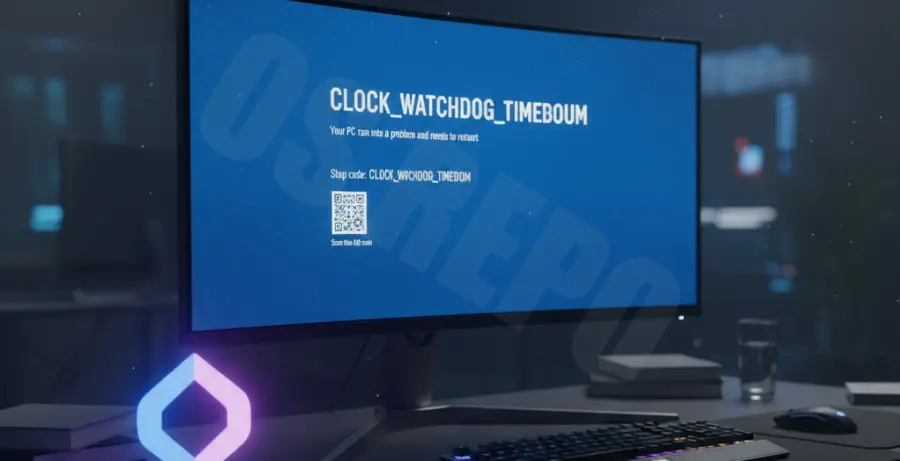
The CLOCK_WATCHDOG_TIMEOUT bug check indicates that a secondary processor in a multi-processor system is not responding. It is a hardware-level “hang” where a CPU core gets stuck in an infinite loop or is waiting for an interrupt that never arrives.
Because VS Code is built on Electron, it utilizes Chromium’s rendering engine. This engine relies heavily on multi-threading and GPU acceleration. If there is a synchronization mismatch between the CPU cores and the graphics driver, the kernel triggers a BSOD to prevent data corruption.
| Component | Role in BSOD |
|---|---|
| Electron Engine | Manages multi-threaded processes for UI and extensions. |
| GPU Drivers | May hang when processing hardware-accelerated CSS/JS. |
| Kernel Watchdog | Monitors CPU core timing and triggers the crash. |
Alternative Methods
If disabling hardware acceleration does not resolve the issue, the problem likely lies in your system’s firmware or power management settings.
1. Update BIOS/UEFI Firmware
Manufacturers frequently release BIOS updates to fix CPU voltage regulation and core synchronization issues. Check your motherboard manufacturer’s website for the latest firmware version, especially if you are using an AMD Ryzen or Intel 12th+ Gen processor.
2. Disable Overclocking or Undervolting
An unstable CPU clock speed is the primary trigger for watchdog timeouts. Reset your BIOS to “Optimized Defaults” to ensure the CPU is receiving adequate voltage. Even a “stable” undervolt can fail during the specific heavy-load spikes generated by VS Code’s IntelliSense indexing.
3. Update Graphics Drivers
Since VS Code interacts with the GPU for rendering, outdated drivers can cause the “clock” to miss a beat. Use the following commands to check for system file corruption after a crash:
sfc /scannow
dism /online /cleanup-image /restorehealth
Finally, ensure all VS Code extensions are updated, as some language servers (like C++ or Rust) utilize heavy CPU resources that can trigger latent hardware instability.