| Issue | Primary Fix | Difficulty |
|---|---|---|
| Display Stuttering | Adjust Refresh Rate (ProMotion) | Low |
| GPU Glitches | Reset WindowServer via Terminal | Medium |
| Color/Flicker Shifts | Disable True Tone & Auto-Brightness | Low |
| Persistent Flickering | Safe Mode & Cache Clear | Medium |
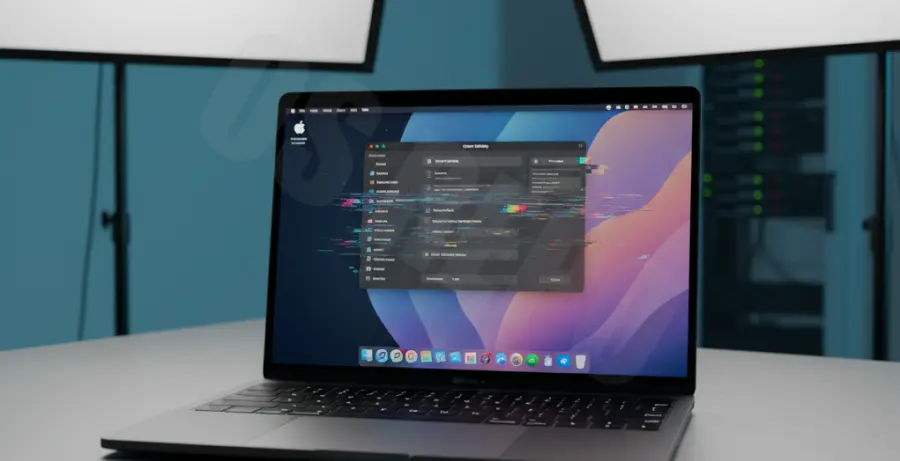
What is M3 Mac Screen Flickering in Sequoia?
The “fix M3 Mac screen flickering Sequoia” issue refers to visual inconsistencies like strobing, horizontal lines, or rapid brightness shifts occurring on MacBook Pro or iMac models equipped with the M3 chip family after upgrading to macOS 15 Sequoia.
This phenomenon is typically caused by software regressions in the display driver stack, conflicts with the ProMotion variable refresh rate, or cached system files from previous macOS versions that interfere with the new Sequoia windowing engine.
Step-by-Step Solutions
1. Modify the Refresh Rate
Many M3 Mac users experience flickering due to the ProMotion (120Hz) adaptive setting. Forcing a static refresh rate can stabilize the panel.
- Go to System Settings > Displays.
- Locate the Refresh Rate dropdown menu.
- Change it from “ProMotion” to “60 Hertz”.
2. Reset the WindowServer Process
If the flicker is caused by a graphical glitch in the UI layer, restarting the WindowServer can resolve it without a full reboot.
sudo pkill WindowServerNote: Running this command will log you out immediately. Save all work before proceeding.
3. Disable Automatic Display Adjustments
macOS Sequoia sometimes struggles with ambient light sensor data on M3 hardware, leading to rapid backlight adjustments that look like flickering.
Navigate to System Settings > Displays and toggle off True Tone and Automatically adjust brightness. Test the screen for a few minutes to see if the flickering persists.
4. Clear System Display Caches
Corrupted display preference files can cause the GPU to misfire. You can manually remove these files to force macOS to regenerate them.
sudo rm /Library/Preferences/com.apple.windowserver.displays.plist
sudo rm ~/Library/Preferences/com.apple.windowserver.plist
After running these commands, restart your Mac immediately to apply the changes.
5. Boot into Safe Mode
Safe Mode clears kernel caches and disables third-party extensions that might conflict with Sequoia’s display drivers.
- Shut down your Mac.
- Press and hold the Power button until “Loading startup options” appears.
- Select your disk, hold the Shift key, and click Continue in Safe Mode.
- Restart normally after the desktop loads.