| Issue | Severity | Estimated Time |
|---|---|---|
| VS Code Install Error 1603 | High (Prevents Installation) | 5 – 10 Minutes |
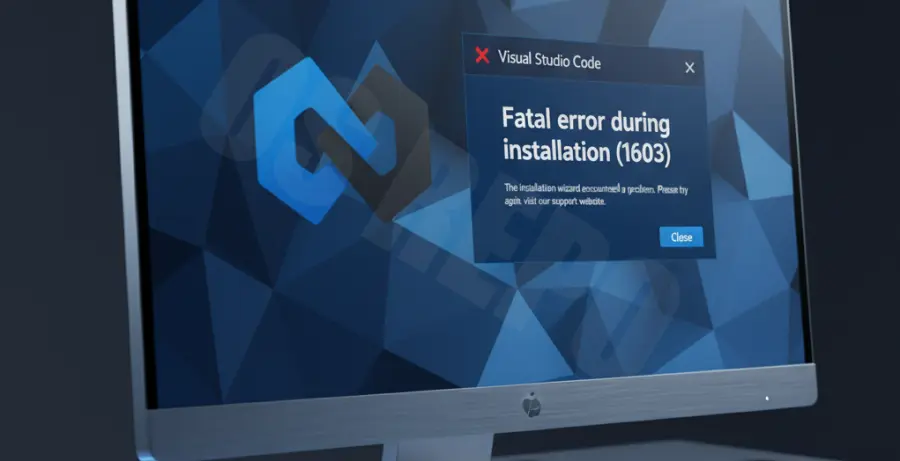
What is VS Code Install Error 1603?
VS Code error 1603 is a generic Windows Installer (MSI) failure that occurs during the installation or update process. It typically indicates that the installer lacks sufficient permissions, the target directory is locked, or previous installation files are corrupted.
Step-by-Step Solutions to Fix Error 1603
1. Run the Installer as Administrator
The most common cause of error 1603 is a lack of administrative privileges. Right-click the VS Code setup file and select “Run as administrator” to bypass permission blocks.
2. Clean Up Existing Installation Folders
Leftover files from a failed installation often cause conflicts. Manually delete the Visual Studio Code folder from your local app data directory before trying again.
# Navigate to this path and delete the Code folder
%LocalAppData%\Programs\Microsoft VS Code
3. Use the System File Checker (SFC)
Windows system file corruption can interfere with the MSI installer engine. Run a system scan to identify and repair damaged OS components.
# Run this command in an elevated Command Prompt
sfc /scannow
4. Disable Antivirus Temporarily
Aggressive antivirus software may lock files that the VS Code installer needs to modify. Disable your real-time protection for five minutes and re-run the setup.
5. Use the User Installer Instead of System Installer
If the System Installer continues to fail, download the “User Installer” from the official website. This version installs VS Code into your user profile and doesn’t require elevated system-wide permissions.