Symptoms & Diagnosis
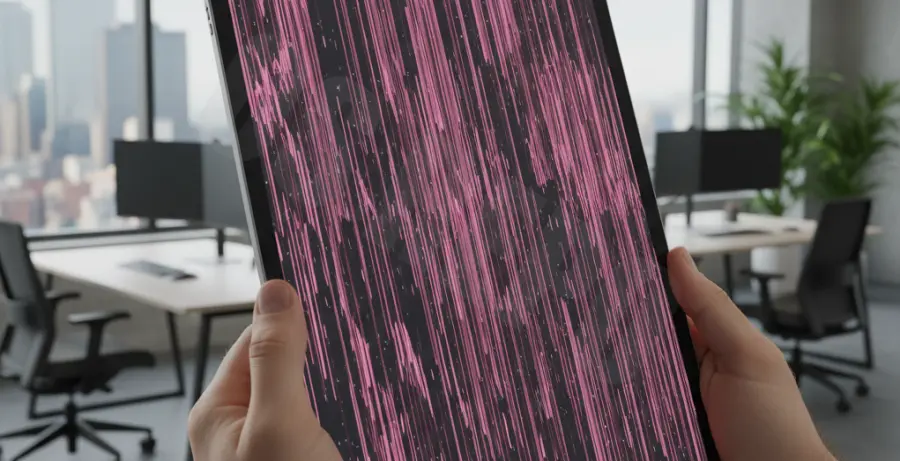
When an iPad Pro starts displaying pink lines, it is usually a sign of a communication breakdown between the logic board and the display assembly. These lines can appear as thin vertical streaks, thick horizontal bands, or a flickering magenta haze that covers the entire screen.
To diagnose the issue, you must first determine if the problem is logical or physical. Software-induced flickering often disappears after a reboot or when switching apps. Hardware-induced lines, however, are persistent and may change intensity when you apply slight pressure to the chassis.
| Symptom | Likely Cause | Severity |
|---|---|---|
| Intermittent Pink Flickering | Software Glitch or Loose Flex Cable | Moderate |
| Static Vertical Pink Lines | Damaged LCD/OLED Controller | High |
| Lines changing with touch | Digitizer or Display Connector Issue | High |
Check if the lines appear in screenshots. If the pink lines are visible in a captured screenshot viewed on another device, the issue is software-related. If the screenshot looks perfect but the screen looks broken, you are dealing with a hardware failure.
Troubleshooting Guide
Before assuming the hardware is dead, you should rule out iPadOS glitches. A “glitched” display driver can occasionally send incorrect voltage signals to the pixels, resulting in the pink tint or flickering lines you are seeing.
Step 1: Perform a Force Restart
A force restart clears the temporary cache and reinitializes the hardware drivers. This is the most common fix for minor flickering caused by background process hangs.
# Force Restart Procedure for iPad Pro (Models without Home Button)
1. Quickly press and release the Volume Up button.
2. Quickly press and release the Volume Down button.
3. Press and hold the Top (Power) button.
4. Release when the Apple logo appears.
Step 2: Check for iPadOS Updates
Apple frequently releases patches for display-related bugs, especially for ProMotion displays found in the iPad Pro line. Navigate to Settings > General > Software Update to ensure you are running the latest version of iPadOS.
Step 3: Reset All Settings
If the flickering persists, a configuration error might be the culprit. This step resets system settings like Display & Brightness and Accessibility without erasing your personal data.
Go to Settings > General > Transfer or Reset iPad > Reset > Reset All Settings. Your iPad will reboot, and you will need to reconfigure your Wi-Fi and wallpaper.
Prevention
Preventing screen failure is significantly cheaper than a full display replacement, which can cost hundreds of dollars for Pro models. Most hardware-related pink lines are caused by “flexgate” or micro-cracks in the display layers.
Avoid placing heavy objects on top of your iPad Pro when it is in a backpack. The thin aluminum chassis can flex, putting direct pressure on the display ribbon cables located near the top edge.
Use a high-quality protective case that offers structural rigidity. Cases with reinforced corners can absorb the shock of a drop that would otherwise dislodge the internal display connectors or fracture the delicate OLED/LCD matrix.
Finally, keep your iPad away from extreme heat. Prolonged exposure to high temperatures can degrade the adhesives and soldering points that hold the display assembly together, leading to the dreaded pink flickering lines over time.