Immediate Fix: Disable Hardware Acceleration
The most common reason for Firefox not responding while watching YouTube is a conflict between your graphics card drivers and Firefox’s hardware acceleration feature. Disabling this allows the CPU to handle rendering, which often stops the freezing immediately.
To do this, click the three horizontal lines (Menu) and select Settings. Scroll down to the Performance section. Uncheck “Use recommended performance settings” and then uncheck “Use hardware acceleration when available.” Restart Firefox to apply the changes.
| Step | Action | Result |
|---|---|---|
| 1 | Open Firefox Settings | Accesses browser configuration |
| 2 | Uncheck Hardware Acceleration | Shifts rendering to the CPU |
| 3 | Restart Browser | Clears the GPU process hang |
Technical Explanation
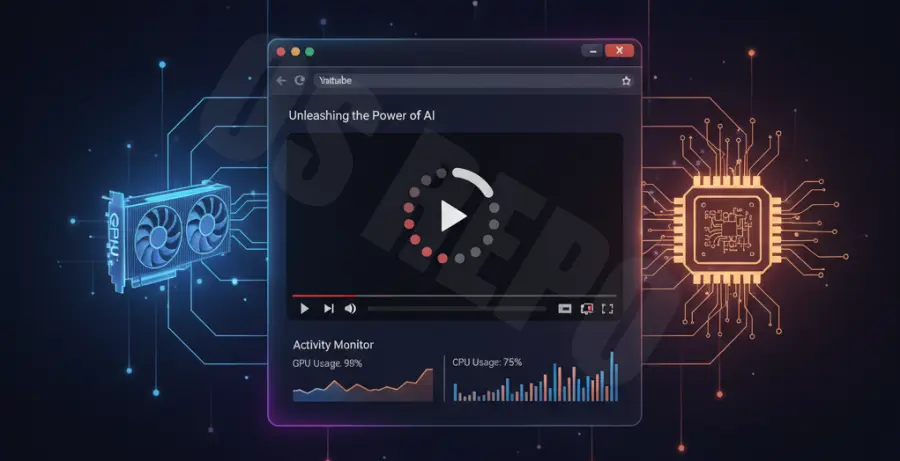
YouTube uses advanced video codecs like VP9 or AV1 to deliver high-definition content. Firefox attempts to offload the decoding of these videos to your Graphics Processing Unit (GPU) via hardware acceleration to save battery and CPU cycles.
If your GPU drivers are outdated or have a memory leak, the “GPU Process” in Firefox may hang. When this process stalls, the entire browser UI becomes unresponsive because it is waiting for a signal from the graphics card that never arrives.
Alternative Methods
If hardware acceleration isn’t the culprit, the issue may lie in your local cache or a specific video codec conflict. You can force YouTube to use a more “browser-friendly” codec by using the “h264ify” extension from the Firefox Add-ons store.
Another effective method is clearing the startup cache. This removes temporary files that might have become corrupted during a browser update or an unexpected shutdown. You can do this manually via the terminal if you are on a Linux or macOS system to ensure all background processes are cleared:
# Close Firefox before running
rm -rf ~/.cache/mozilla/firefox/*.default-release/startupCache
Refresh Firefox
If the freezing persists, your profile might be bloated. Navigate to about:support in your address bar and click on Refresh Firefox. This resets the browser to its default state while keeping your essential data like bookmarks and passwords, effectively removing buggy extensions or hidden configuration errors.
Check for Script Timeouts
Sometimes YouTube’s scripts take too long to execute. You can increase the script timeout limit by going to about:config, searching for dom.max_script_run_time, and increasing the value to 20 or 30. This gives the browser more time to process heavy page elements before declaring the page “unresponsive.”