| Issue | iPhone 16 Pro Software Update Server Could Not Be Contacted |
|---|---|
| Common Causes | Apple server congestion, poor Wi-Fi, or DNS conflicts. |
| Quick Fix | Restart iPhone, toggle Wi-Fi, or use a computer to update. |
| Time Required | 5-15 minutes |
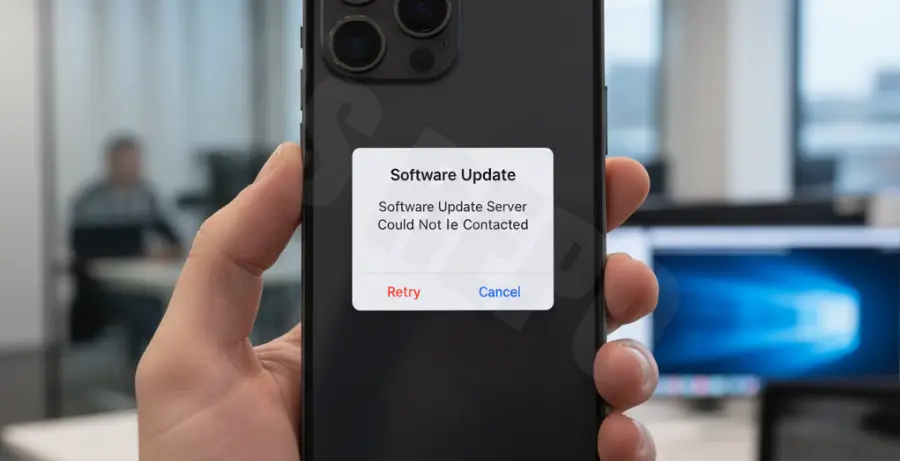
What is the iPhone 16 Pro “Software Update Server Could Not Be Contacted” Error?
The “Software Update Server Could Not Be Contacted” error is a common hurdle for iPhone 16 Pro users trying to download the latest iOS version. It signifies that your device cannot establish a stable connection with Apple’s update infrastructure.
This error usually triggers during peak release windows when millions of devices request data simultaneously. However, it can also stem from local network configurations or temporary software bugs within the new iPhone 16 Pro hardware.
Essentially, your iPhone is asking Apple for the update file, but the handshake is failing before the download can begin. Understanding whether the problem is on Apple’s end or yours is the first step to a fix.
Step-by-Step Solutions to Fix iPhone 16 Pro Update Failures
1. Verify Apple’s System Status
Before troubleshooting your hardware, ensure Apple’s servers are actually functioning. Large-scale outages can happen during major iOS rollouts.
Visit the official Apple System Status page. Look for “iOS Software Update.” If the indicator is green, the servers are fine, and the issue is likely local to your device or network.
2. Force Restart Your iPhone 16 Pro
A force restart can clear temporary cache files that might be blocking the update service. Since the iPhone 16 Pro lacks a home button, follow this sequence:
Quickly press and release the Volume Up button. Quickly press and release the Volume Down button. Then, press and hold the Side button until the Apple logo appears.
3. Switch to a Different Wi-Fi Network
Public Wi-Fi or restricted corporate networks often block the ports required for Apple’s update servers. Switch to a private home network or a stable 5G connection if your data plan allows.
You can also try toggling Airplane Mode on and off to reset your network radios and force a fresh connection to your router.
4. Check for Network DNS Issues
Sometimes, your ISP’s DNS cannot resolve Apple’s server addresses. You can test your connectivity or flush your local DNS. On a Mac connected to the same network, you can check the connection via Terminal:
ping gs.apple.comIf you get “Request timeout,” your network is blocking the update server. Try changing your iPhone Wi-Fi settings to use Google DNS (8.8.8.8) or Cloudflare (1.1.1.1).
5. Update via Finder or iTunes
If the over-the-air (OTA) update continues to fail, use a physical connection. Connect your iPhone 16 Pro to a Mac or PC using a USB-C cable.
Open Finder (Mac) or iTunes (Windows), select your device, and click “Check for Update.” This method uses your computer’s internet connection, which is often more stable for large file transfers.
6. Reset Network Settings
If all else fails, reset your network configurations. Go to Settings > General > Transfer or Reset iPhone > Reset > Reset Network Settings.
This will erase saved Wi-Fi passwords and VPN settings but frequently resolves deep-seated connectivity bugs that prevent the iPhone 16 Pro from reaching Apple’s servers.