Immediate Fix
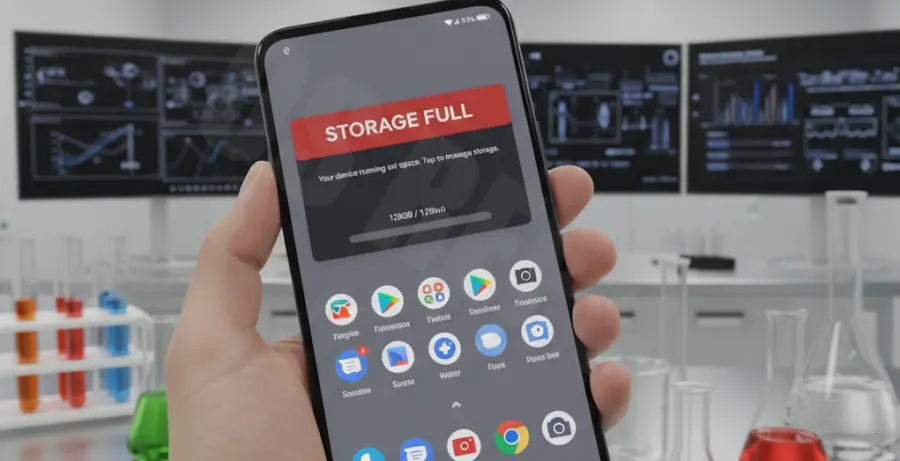
To resolve the Pixel 9 insufficient storage error quickly, you must clear the system’s temporary partition. This error often occurs when the device’s cache prevents high-resolution AI processing or system updates.
Start by navigating to Settings > Storage and selecting Free up space. Use the built-in “Files by Google” tool to remove duplicate files and large media assets that are already backed up to the cloud.
| Storage Category | Recommended Action |
|---|---|
| System Cache | Clear via Storage Settings |
| App Data | Offload unused applications |
| Media Downloads | Sync to Google Photos and “Free up space” |
For a deeper system-level purge without a factory reset, you can use ADB (Android Debug Bridge) to trim the caches across all user profiles. Execute the following command while your Pixel 9 is in Developer Mode:
adb shell pm trim-caches 999GTechnical Explanation
The Pixel 9 utilizes a sophisticated A/B (Seamless) update system and dedicated partitions for on-device AI models like Gemini Nano. When these partitions lack sufficient “headroom,” the OS triggers an insufficient storage error, even if the user-facing storage looks partially empty.
This “ghost” storage usage is often caused by fragmented metadata or failed background updates that occupy the system’s “Slot A” or “Slot B” partitions. Because the Pixel 9 prioritizes system stability, it will block new write operations until the reserved system overhead is restored.
Alternative Methods
If the immediate fixes do not clear the notification, the issue might be related to Google Play System Updates or synchronized cloud data bottlenecks.
Reset Google Play Services Cache
Navigate to Settings > Apps > See all apps > Google Play Services. Tap Storage & cache and then Manage space. Select Clear all data. This forces the device to recalibrate its handshake with your Google account storage.
Disable App Archiving
While intended to save space, the automatic app archiving feature can sometimes cause misreporting in the storage manager. Toggle this off in Settings > Apps > Unused apps to see if the available storage reflects the true physical capacity of your Pixel 9.
Check WhatsApp and Telegram Databases
Encrypted messaging apps often store massive local databases that are hidden from the standard “Images” and “Videos” categories. Manually inspect the Android/media/ folder using a file manager to delete redundant backup files that may be clogging the partition.