| Issue | Primary Cause | Quick Fix |
|---|---|---|
| Update Failed Error | Insufficient local storage space | Offload apps or update via a Mac/PC |
| Storage Requirements | iOS 18 requires 10-15GB free | Delete temporary cache and system data |
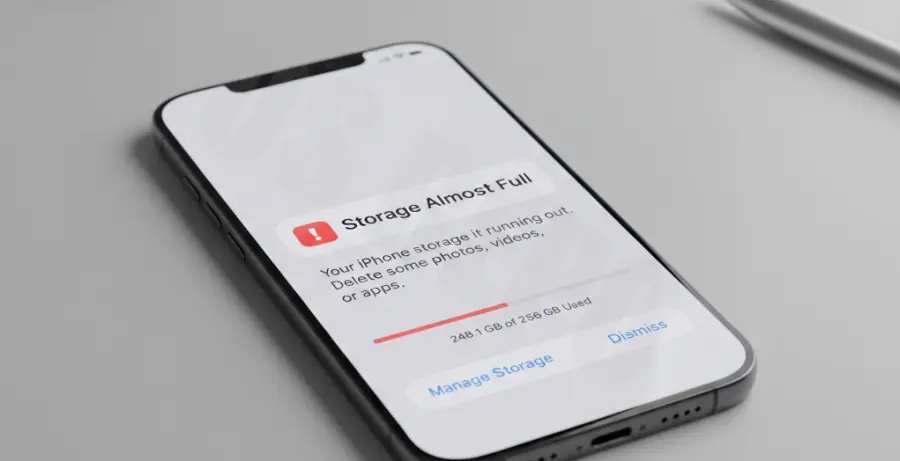
What is iPhone 16 Pro update failed not enough storage?
The “iPhone 16 Pro update failed not enough storage” error occurs when the device lacks the necessary overhead to download, unpack, and install a new iOS version. Even if the update file is only 5GB, the system often requires 10GB to 15GB of free space to process the installation safely.
This is particularly common on the iPhone 16 Pro when migrating data from an older device. The system storage might be clogged with “System Data” or large media files, preventing the iOS 18 update from completing its cycle.
Step-by-Step Solutions
1. Check Storage Breakdown
Before deleting files, identify what is consuming your space. Navigate to Settings > General > iPhone Storage. Wait for the graph to load to see a categorized breakdown of your usage.
2. Offload Large Applications
Offloading allows you to delete the app while keeping its documents and data. Go to the Storage menu, select a large app (like Genshin Impact or Netflix), and tap Offload App. This clears the application binary but keeps your progress.
3. Update via Mac or PC
If you cannot clear enough space on the device, use a computer. This method requires significantly less free space on the iPhone because the computer handles the unpacking of the update file.
Connect your iPhone 16 Pro to your Mac (Finder) or Windows PC (iTunes/Apple Devices app). Select your device and click Check for Update.
4. Clear System Data Cache
Sometimes “System Data” (formerly “Other”) grows too large. You can force a cache clear by restarting your device or syncing it with a computer. For advanced users checking connected device logs via Terminal, you might use tools like cfgutil if you have Apple Configurator installed.
# Example: Using Apple Configurator CLI to check device info
cfgutil get deviceCapacity
cfgutil get freeCapacity
5. Optimize Photos and Videos
High-resolution ProRes video on the iPhone 16 Pro consumes massive amounts of space. Go to Settings > Photos and ensure Optimize iPhone Storage is checked. This moves full-resolution versions to iCloud and keeps smaller versions on your device.