Symptoms & Diagnosis
The “Login Failed” error on the Galaxy S25 Ultra Secure Folder often occurs immediately after a system update or a Samsung Account password change. Users typically encounter a persistent loading spinner or an explicit “Unable to sign in” notification.
Common symptoms include the biometric prompt failing to appear or the app crashing when attempting to verify credentials. In some cases, the device may report a “Network error” despite having a stable Wi-Fi or 5G connection.
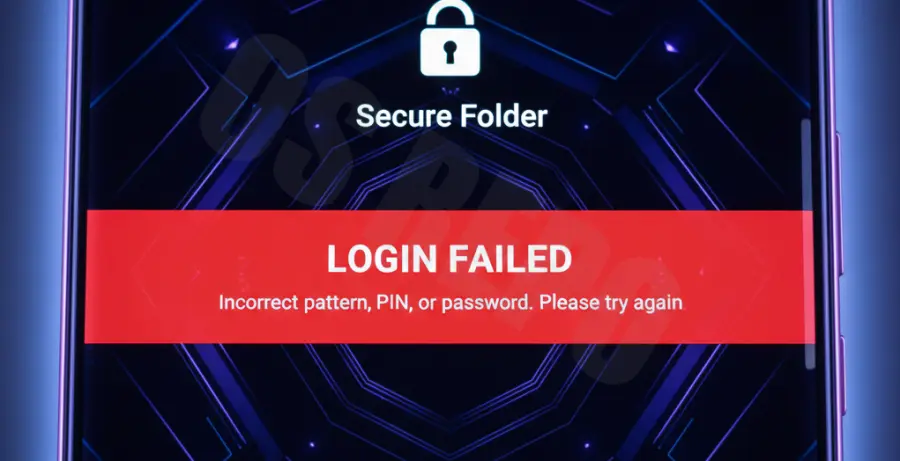
Troubleshooting Guide
Most login failures are caused by corrupted cache files or synchronization mismatches between the local Knox container and the Samsung Account servers. Start by performing a soft reset of the Secure Folder application through the system settings.
Advanced ADB Reset Strategy
If standard UI methods fail, you can force-reset the Secure Folder credential manager using Android Debug Bridge (ADB). This command clears the specific authentication state without deleting your encrypted files.
adb shell pm clear com.samsung.knox.securefolder
adb shell am force-stop com.samsung.knox.securefolder
Error Code Reference Table
Refer to the table below to identify specific error codes returned during the login handshake process.
| Error Code | Primary Cause | Recommended Action |
|---|---|---|
| ERR_SF_401 | Token Expiration | Log out and log back into Samsung Account |
| ERR_SF_503 | Server Congestion | Wait 15 minutes and retry login |
| ERR_SF_SYNC_02 | Knox Policy Conflict | Update Security Policy in Settings |
Manual Cache Purge
Navigate to Settings > Apps > Secure Folder > Storage. Tap “Clear Cache” and “Clear Data” to force the app to rebuild its local database index.
Prevention
- Enable Auto-Sync: Ensure that Secure Folder data is regularly synced with the Samsung Cloud to prevent local database corruption.
- Keep Knox Updated: Regularly check for security provider updates within the Galaxy Store to maintain compatibility with the S25 Ultra firmware.
- Secondary Authentication: Always set up a PIN or Pattern as a backup to biometric login to avoid lockout during sensor glitches.
- Monitor Background Data: Ensure that “Background Data Usage” is enabled for both the Secure Folder and Samsung Account apps.