Symptoms & Diagnosis
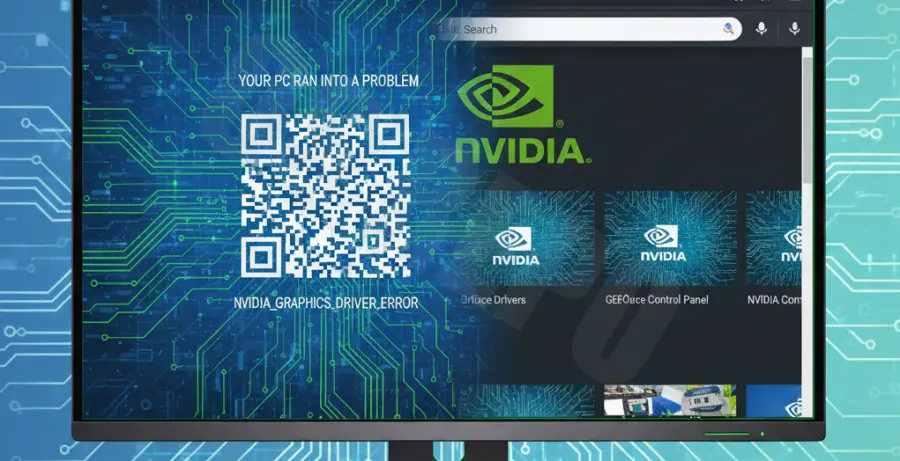
Users experiencing the “Chrome blue screen fix NVIDIA drivers” issue often report sudden system crashes while browsing media-heavy websites. This conflict typically occurs when the browser’s hardware acceleration interferes with the NVIDIA display driver’s power management or memory allocation.
Common symptoms include a frozen screen, a flickering cursor, and the eventual transition to the Blue Screen of Death (BSOD). You may see error codes like VIDEO_TDR_FAILURE (nvlddmkm.sys) or DPC_WATCHDOG_VIOLATION. These indicate that the graphics card driver failed to respond within the allotted time.
To diagnose the issue, check your Windows Event Viewer under “System Logs” for “Display driver nvlddmkm stopped responding.” If this coincides with your Chrome usage, the conflict between Chrome’s rendering engine and your GPU is the likely culprit.
Troubleshooting Guide
The most effective way to resolve this is by adjusting how Chrome interacts with your GPU. Below are the steps to stabilize your environment.
1. Disable Hardware Acceleration
Chrome uses your GPU to speed up page loading, but this can cause instability with certain NVIDIA driver versions.
- Open Chrome and click the three dots (Menu) in the top-right corner.
- Navigate to Settings > System.
- Toggle off “Use graphics acceleration when available.”
- Relaunch the browser.
2. Clean Install NVIDIA Drivers
Sometimes a standard update isn’t enough. You may need to perform a clean installation using Display Driver Uninstaller (DDU).
| Action | Tool Recommended | Outcome |
|---|---|---|
| Driver Removal | DDU (Display Driver Uninstaller) | Removes all residual registry keys. |
| Driver Install | NVIDIA GeForce Experience | Installs the latest stable WHQL driver. |
| Verification | DirectX Diagnostic Tool | Confirms driver version and stability. |
3. Update Drivers via Command Line
If you prefer checking your current driver status through a terminal, you can use the NVIDIA System Management Interface.
# Check current NVIDIA driver version and GPU status
nvidia-smi

# Check for Windows system file corruption that might cause BSOD
sfc /scannow
Prevention
To prevent future BSOD errors while using Chrome, ensure your Windows OS is fully updated. Microsoft frequently releases patches that address driver-to-app compatibility issues.
Limit the number of active browser extensions. Ad-blockers or GPU-intensive extensions can sometimes trigger driver timeouts. If you are using a high-refresh-rate monitor, try setting the “Power management mode” in the NVIDIA Control Panel to “Prefer maximum performance” for the Chrome.exe application specifically.
Regularly clear your browser cache and shaders. Overloaded shader caches can lead to memory leaks, forcing the NVIDIA driver to crash and trigger the blue screen.