| Feature | Details |
|---|---|
| Error Code | 0x426-0x0 |
| Application | Microsoft PowerPoint / Office 365 |
| Primary Cause | Click-to-Run service failure or corrupted installation files. |
| Quick Fix | Restart Click-to-Run service or perform an Online Repair. |
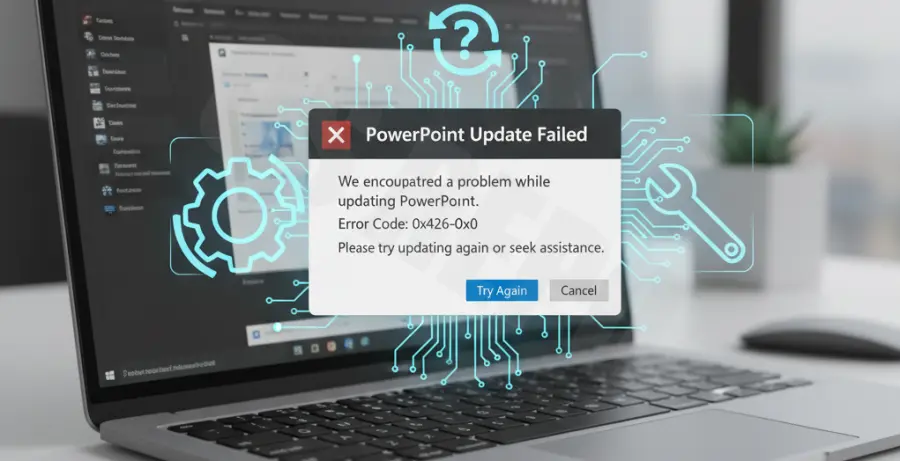
What is PowerPoint Update Error 0x426-0x0?
The error code 0x426-0x0 typically occurs when Microsoft PowerPoint fails to update or launch correctly. It is most commonly associated with a malfunction in the “Microsoft Office Click-to-Run” service.
This service is responsible for managing updates and background installations for Office applications. If the service is disabled, corrupted, or blocked by a third-party firewall, PowerPoint cannot communicate with Microsoft servers.
Users often encounter this error after a failed Windows update or when previous installation attempts leave behind “ghost” configuration files that conflict with the current version.
Step-by-Step Solutions
1. Enable Microsoft Office Click-to-Run Service
The most common culprit is a disabled background service. You can force-start this service using the Windows Services manager or via the command line.
To check the service status via command line, use the following:
# Start the Click-to-Run service manually
sc start clicktorunsvc
Alternatively, press Win + R, type services.msc, and locate “Microsoft Office Click-to-Run Service.” Ensure its Startup Type is set to Automatic.
2. Perform an Online Repair
If the service is running but the error persists, the installation files may be corrupted. Windows includes a built-in repair tool to fix this without losing your data.
1. Open the Control Panel and go to Programs and Features.
2. Find Microsoft Office (or Microsoft 365) in the list.
3. Click Change at the top.
4. Select Online Repair and click Repair.
Note: Online Repair is more thorough than Quick Repair and is recommended for error 0x426-0x0.
3. Run System File Checker (SFC)
Sometimes underlying Windows system files prevent Office from updating properly. Use the SFC tool to scan for integrity violations.
# Run this in an elevated Command Prompt
sfc /scannow
Wait for the process to reach 100% and restart your computer before trying the PowerPoint update again.
4. Disable Third-Party Antivirus
Aggressive firewall settings can block the 0x426-0x0 communication bridge. Temporarily disable your antivirus or firewall software and try to initiate the update from within PowerPoint via File > Account > Update Options > Update Now.