Immediate Fix
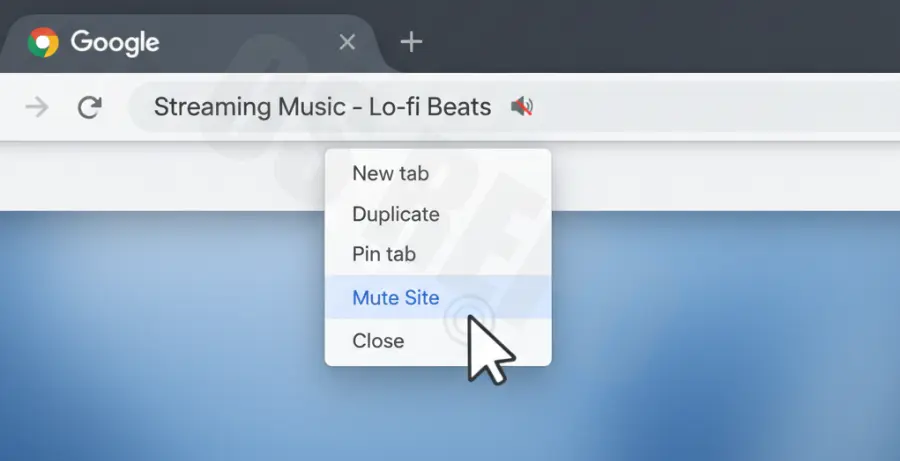
To unmute a Chrome tab instantly, right-click the specific tab at the top of your browser window. From the context menu, select Unmute Site. This will immediately restore audio to that tab and any other tabs open from the same domain.
Another quick method is to look for the speaker icon on the tab itself. If the icon has a diagonal line through it, the site is muted. Clicking this icon serves as a toggle to turn the sound back on.
Technical Explanation
Google Chrome manages audio on a “per-site” basis rather than a “per-tab” basis. When you select the mute option, Chrome updates its internal content settings for that specific origin (URL). This ensures that if you open multiple pages from the same website, they all follow the same audio rules.
The browser intercepts the HTML5 Audio/Video API calls. When a site is muted, the audio stream is processed but the output to your system’s sound mixer is suppressed at the browser level. This prevents unwanted autoplay noise without pausing the media itself.
Alternative Methods
Manage Audio via Chrome Settings
If the right-click method does not work, you may have a global block on site audio. You can manage these permissions through the main settings menu to ensure no sites are accidentally blacklisted.
| Method | Action | Best For |
|---|---|---|
| Site Settings | Navigate to chrome://settings/content/sound | Global control |
| Omnibox Icon | Click the lock icon next to the URL | Individual site permissions |
| Keyboard Shortcuts | Requires 3rd party extension | Power users |
Clearing Audio Flags
Sometimes, Chrome’s experimental features can interfere with audio playback. Developers often use command-line flags to reset how Chrome handles audio drivers if the standard UI fails to restore sound.
# Launching Chrome with audio reset flags (for troubleshooting)
google-chrome --disable-audio-output-resampler --autoplay-policy=no-user-gesture-required
Check System Volume Mixer
If the tab appears unmuted in Chrome but you still hear nothing, check your OS mixer. Right-click the volume icon in your taskbar (Windows) or check Sound Settings (macOS) to ensure the Google Chrome application itself is not muted at the system level.