Immediate Fix: Adjusting Registry Permissions
The most common cause of Event ID 8193 in Windows Server 2022 is a permission issue regarding the **Network Service** account. This account often loses access to specific registry keys required by the Volume Shadow Copy Service (VSS).
Follow these steps to restore the necessary permissions:
1. Press **Win + R**, type `regedit`, and hit Enter.
2. Navigate to the following path:
HKEY_LOCAL_MACHINE\Software\Microsoft\Windows NT\CurrentVersion\ProfileList3. Right-click the **ProfileList** folder and select **Permissions**.
4. Click **Add**, type `Network Service`, and click **Check Names**.
5. Select **Network Service** and ensure **Full Control** is checked.
6. Click **Apply** and **OK**.
If the error persists, you may need to re-register the VSS DLL files. Run the following commands in an elevated PowerShell prompt:
cd /d %windir%\system32
net stop vss
net stop swprv
regsvr32 /s ole32.dll
regsvr32 /s vss_ps.dll
vssvc /register
net start swprv
net start vss
Technical Explanation
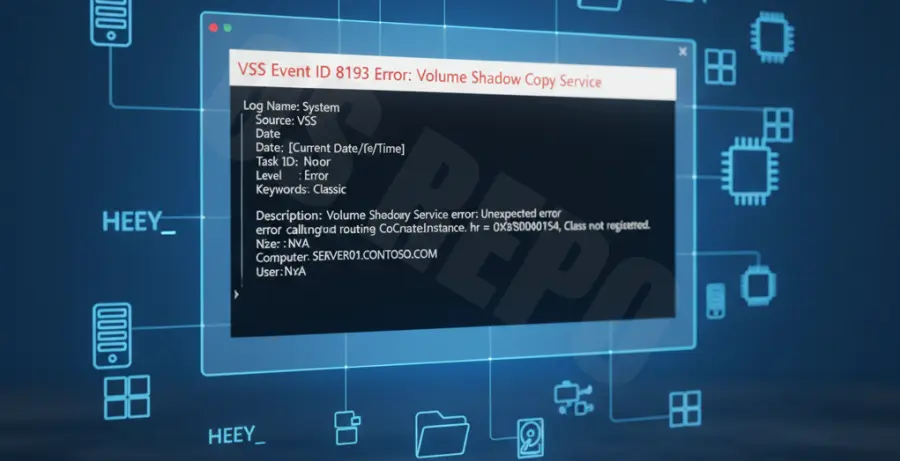
The VSS Error Event ID 8193 is a “Unexpected error calling routine.” It typically occurs when a VSS provider (often the DHCP or Registry writer) attempts to access a resource it does not have rights to.
In Windows Server 2022, the VSS service relies on the **COM+ Event System**. If the security descriptor for the shadow copy provider is corrupted or restricted, the backup process fails.
| Component | Details |
|---|---|
| Source | VSS (Volume Shadow Copy Service) |
| Error Code | 0x80070005 (Access Denied) |
| Common Cause | Network Service permission mismatch |
| Affected OS | Windows Server 2019, 2022 |
Alternative Methods
If the Registry fix does not resolve the issue, try these secondary troubleshooting steps:
Check VSS Writer Status
Identify if a specific writer is failing. Open Command Prompt as Administrator and run:
vssadmin list writersLook for any writers with a state other than **[1] Stable**. If a writer shows an error, restart the service associated with that writer (e.g., the DHCP Server service).
Restart Related Services
Sometimes the VSS service becomes deadlocked. Restart the core services to clear the queue:
Restart-Service -Name VSS, swprv, EventSystemReview Disk Quotas
Ensure that the drive hosting the shadow copies has sufficient space. If the “Maximum Size” for shadow copies is set too low, the VSS provider will trigger Event ID 8193.
1. Right-click the Drive (e.g., C:) > **Configure Shadow Copies**.
2. Select the volume and click **Settings**.
3. Ensure the **Maximum Size** is set to “No Limit” or a sufficiently large value.