Immediate Fix: Force Quit and Terminal Reset
When macOS Sequoia freezes, your first priority is regaining control of the interface. If the cursor moves but clicks don’t register, use the Force Quit dialogue.
| Action | Shortcut / Command |
|---|---|
| Force Quit Applications | Command + Option + Escape |
| Hard Restart | Hold Power Button (5 seconds) |
If the UI is completely unresponsive, you can often resolve the hang by restarting the WindowServer process via Terminal from a remote session or if you can still access a command line. This forces the graphical interface to reload without a full reboot.
sudo killall -HUP WindowServerWarning: This command will log you out immediately and close all open applications. Use it only as a last resort before pulling the power.
Technical Explanation: Why macOS Sequoia Freezes
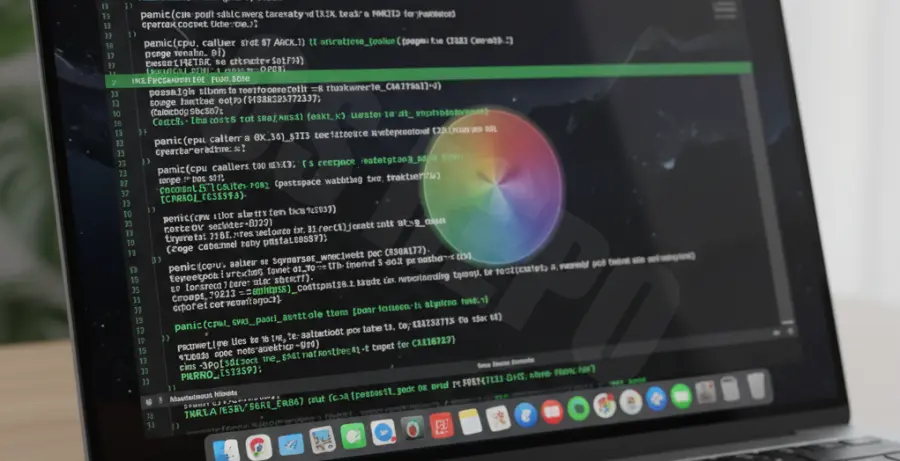
System freezes in macOS Sequoia are typically caused by “Kernel Panics” or resource exhaustion. During the initial days after an upgrade, Spotlight (the indexing service) and Photos analysis run heavily in the background. These processes can consume 100% of CPU cycles, leading to thermal throttling.
Another common culprit is the new window tiling manager or Stage Manager updates. If an older third-party extension (kext) tries to hook into the Sequoia display driver, it may cause a memory leak. This results in the “Application Memory Exhausted” error or a total system hang.
Alternative Methods to Fix macOS Sequoia Performance
1. Boot into Safe Mode
Safe Mode prevents third-party login items from loading and clears system caches. For Apple Silicon Macs, shut down, then hold the Power button until “Loading startup options” appears. Select your disk, hold Shift, and click “Continue in Safe Mode.”
2. Run Disk Utility First Aid
Corrupted file system permissions can cause the OS to hang when trying to write data. Open Disk Utility, select your “Data” volume, and click “First Aid.” This will check the APFS container for errors and repair the catalog tree.
3. Manage Heavy Background Processes
Open Activity Monitor and sort by “% CPU.” If you see a process like bird (iCloud) or mds_stores (Spotlight) taking up excessive resources, it is likely the cause of your freeze. You can manually quit these processes to restore system fluidity.
| Process Name | Function |
|---|---|
| mds / mdworker | Spotlight Indexing |
| trustd | Security Certificate Check |