| Symptom | Likely Cause | Quick Fix |
|---|---|---|
| Screen pulses when keyboard opens | Software UI Glitch / iPadOS Bug | Force Restart Device |
| Erratic flickering while typing | Static Electricity / Screen Protector | Clean Screen / Remove Protector |
| Stuttering with Apple Pencil & Keys | Palm Rejection / Refresh Rate Bug | Toggle ProMotion Settings |
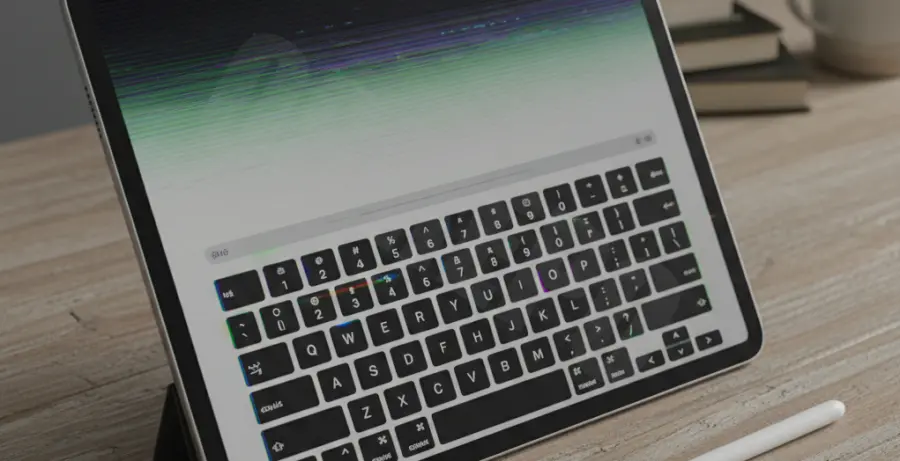
What is iPad Pro screen flickering when typing?
iPad Pro screen flickering when typing refers to a visual anomaly where the display brightness fluctuates rapidly or the image stutters specifically when the virtual keyboard is active. This issue often appears as a “pulse” or a “shimmer” around the edges of the keys or the entire display area.
For most users, this is a software-related conflict. The iPad Pro uses a ProMotion display with a 120Hz variable refresh rate. When the keyboard invokes, the system adjusts the refresh rate, which can sometimes result in a flickering effect if the software fails to sync the frame rates correctly.
In some cases, hardware factors like low-quality screen protectors or faulty charging cables can introduce electrical interference. This interference manifests as jittery screen behavior exactly when your fingers make contact with the digitizer to type.
Step-by-Step Solutions
1. Perform a Force Restart
A force restart clears the temporary cache and resets the hardware-software handshake. This is the most effective fix for “glitchy” UI behavior during typing.
Quickly press and release the Volume Up button, then the Volume Down button. Finally, press and hold the Top (Power) button until the Apple logo appears.
2. Disable “Reduce White Point”
Some users find that specific accessibility settings conflict with the keyboard overlay. Adjusting the white point can stabilize the backlight controller.
Navigate to Settings > Accessibility > Display & Text Size. Ensure “Reduce White Point” is toggled off. If it was already off, try toggling it on and off again to reset the display profile.
3. Toggle ProMotion and Refresh Rate
Since the flickering is often tied to the 120Hz refresh rate, limiting the frame rate can diagnose if the display controller is at fault.
Go to Settings > Accessibility > Motion and toggle on “Limit Frame Rate.” If the flickering stops, the issue is likely a software bug in how iPadOS handles ProMotion during text input animations.
4. Check for Terminal Log Errors
If you are a developer or have a Mac, you can check for system-level graphics crashes that occur during typing using cfgutil or by viewing the device console.
# Example: Checking for SpringBoard or Backlight errors in logs
idevicesyslog | grep -E "backlight|display|keyboard"
5. Reset All Settings
If the flickering persists, a configuration file within iPadOS might be corrupted. Resetting settings will not delete your data, but it will return system preferences to factory defaults.
Go to Settings > General > Transfer or Reset iPad > Reset > Reset All Settings. The device will reboot, and you can test the keyboard again.
6. Inspect Hardware and Accessories
If the iPad Pro flickers only when plugged in, your charger or cable may be ungrounded. This sends “noise” to the touch screen. Try typing while the device is unplugged.
Additionally, remove any tempered glass screen protectors. These can trap static electricity between the glass and the digitizer, causing the screen to “freak out” when multiple touch points (typing) are registered.