Symptoms & Diagnosis
Screen flickering on macOS 15 Sequoia typically manifests as rapid blinking, horizontal lines, or sudden shifts in brightness. These visual artifacts can be triggered by specific applications or occur randomly across the system interface.
Identifying whether the issue is software-based or hardware-related is crucial for an effective fix. Use the table below to diagnose the most likely cause of your display issues.
| Symptom | Probable Cause | Diagnostic Step |
|---|---|---|
| Flickering on external monitor only | Faulty cable or port mismatch | Swap HDMI/DisplayPort cables |
| Rapid flashing across the entire UI | macOS 15 GPU driver conflict | Boot into Safe Mode |
| Flickering during video playback | Hardware acceleration bug | Disable acceleration in browser settings |
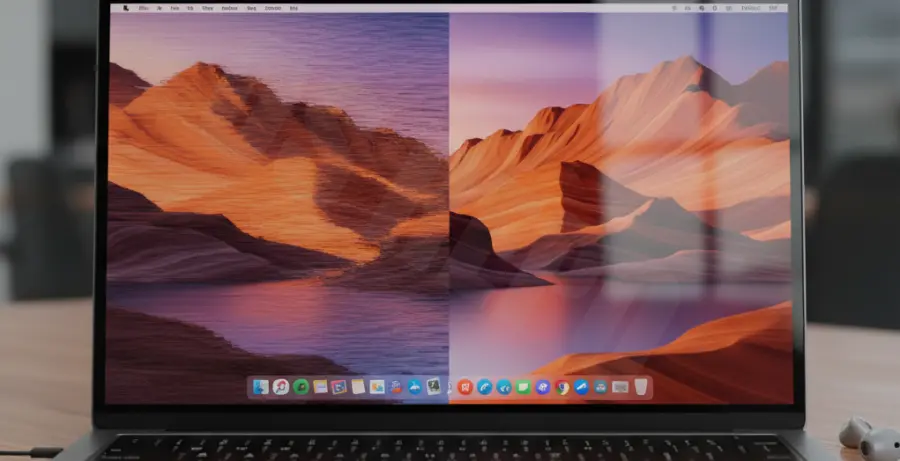
Troubleshooting Guide
If your screen began flickering immediately after updating to macOS Sequoia, the issue is likely related to the display refresh rate or window management service. Start by forcing a refresh of the graphical user interface.
Open the Terminal application and run the following command to reset the Dock and Desktop services, which often clears temporary graphical glitches:
sudo killall DockNext, adjust your display settings. Some Mac models with ProMotion (120Hz) experience “hunting” between refresh rates in macOS 15. Navigate to System Settings > Displays and switch the Refresh Rate from “ProMotion” to a fixed “60 Hertz”.
If the flickering persists, you should check for “True Tone” and “Night Shift” conflicts. Disable both settings temporarily in the Displays menu to see if the flickering stops. These features dynamically alter the display’s color temperature and can occasionally trigger PWM (Pulse Width Modulation) inconsistencies.
For users with Intel-based Macs running macOS 15, resetting the NVRAM (Non-Volatile Random-Access Memory) can resolve display-related settings stored at the firmware level. Note that Apple Silicon Macs perform a similar check automatically during a standard restart.
# There is no specific terminal command for NVRAM reset on Apple Silicon;
# simply shut down and restart the device.
Prevention
To prevent future flickering issues on macOS 15, ensure your system is always running the latest minor point release. Apple frequently pushes “Rapid Security Responses” and sub-version updates to fix GPU driver regressions found in initial Sequoia releases.
Avoid using low-quality USB-C to HDMI adapters. macOS Sequoia has stricter handshake requirements for HDCP (High-bandwidth Digital Content Protection). Using “Active” adapters rather than “Passive” ones ensures a stable signal.
Lastly, monitor your Mac’s thermal performance. macOS 15 utilizes aggressive GPU scheduling; if the internal temperature exceeds safe limits, the system may throttle the display controller, resulting in visible flickering or stuttering. Use a clean, hard surface to ensure proper airflow.