| Fix Method | Estimated Time | Success Rate |
|---|---|---|
| Force Hard Restart | 30 Seconds | High |
| Safe Mode Boot | 5 Minutes | Medium |
| Factory Reset (Recovery) | 15 Minutes | Extreme |
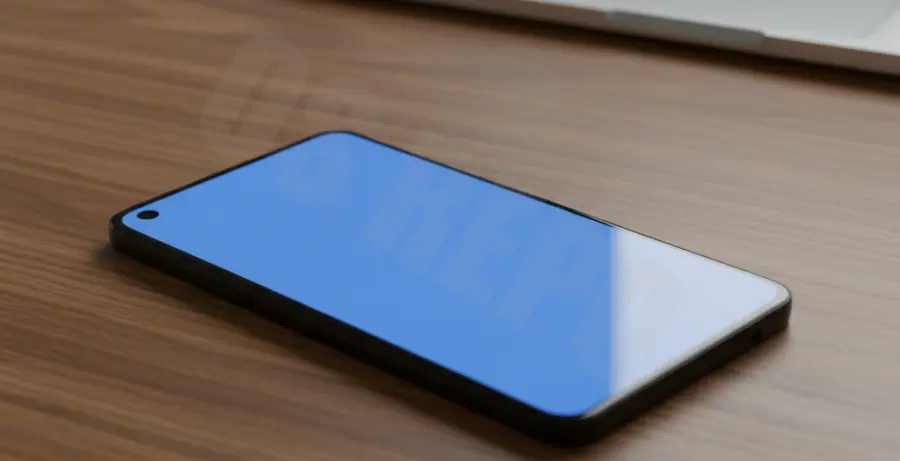
What is the Pixel 9 Blue Screen?
The Pixel 9 Blue Screen, often referred to as the Blue Screen of Death (BSOD), occurs when the Android system encounters a critical kernel error or hardware failure. Unlike a standard freeze, the screen turns a solid blue or flickering azure color and becomes completely unresponsive to touch.
This issue typically stems from corrupted system files, faulty third-party apps, or failed OTA (Over-The-Air) updates. While rare on Google’s flagship hardware, software glitches during the initial setup phase can trigger this unresponsive state.
Step-by-Step Solutions
1. Perform a Forced Hard Restart
The first and most effective solution is to cut power to the logic board temporarily. This clears the volatile memory (RAM) and forces the OS to reload.
Press and hold the Power Button and Volume Up button simultaneously for at least 30 seconds. Do not let go until you see the Google “G” logo on the screen.
2. Boot into Safe Mode
If the blue screen reappears after a restart, a third-party application may be the culprit. Safe Mode disables all non-essential apps.
Hold the Power button until the Power Menu appears. Long-press the “Restart” option until the “Reboot to Safe Mode” prompt appears. Tap OK. If the blue screen disappears here, uninstall recently added apps.
3. Use ADB to Rescue the Device
If you have a computer handy, you can try to push a command to the device to clear the cache or check the status if USB debugging was previously enabled.
adb reboot recovery
adb devices
4. Factory Reset via Recovery Mode
If the device remains unresponsive, you must use the hardware keys to enter the Recovery environment and wipe the data partition.
Turn off the device. Press Power + Volume Down until the Fastboot menu appears. Use the volume keys to select “Recovery Mode” and press Power. When the “No Command” droid appears, hold Power and tap Volume Up once.
Select “Wipe data/factory reset” and confirm. Note that this will erase all local data on your Pixel 9.
5. Check for Software Updates
Once you regain access to the interface, immediately check for system patches. Google often releases emergency “zero-day” patches for display driver issues.
Navigate to Settings > System > Software updates and tap “Check for update.”