Immediate Fix
If your Pixel 9 is constantly crashing to the home screen or rebooting, the fastest way to stabilize the system is a forced restart. Press and hold the Power and Volume Up buttons simultaneously for about 15 seconds until the Google logo appears.
Often, these crashes are caused by outdated system components or “System Intelligence” services. Immediately check for pending updates in the Play Store and the System Settings menu.
| Action | Expected Outcome |
|---|---|
| Safe Mode Boot | Disables 3rd-party apps to identify the culprit. |
| System Update | Patches kernel-level bugs and Tensor G4 instability. |
| Play Store Update All | Ensures app compatibility with Android 14/15. |
Booting into Safe Mode
To isolate the issue, hold the Power button, then long-press the “Restart” icon on the screen. Select “OK” to enter Safe Mode. If the crashes stop, a recently installed app is the cause.
Technical Explanation
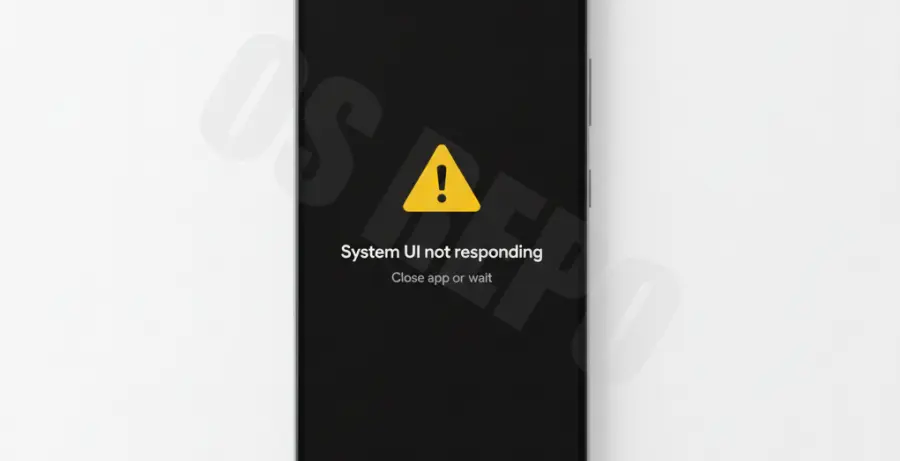
Constant crashes to the desktop (the “Springboard” or “Pixel Launcher”) are usually the result of a fatal exception in the System UI or a memory leak within the Tensor G4’s NPU processing tasks. When a background process fails to communicate with the kernel, Android kills the active task to prevent hardware damage.
In some cases, the Pixel 9 may experience “Kernel Panics” due to corrupted cached data in the Google Play Services framework. This creates a loop where the system attempts to restart a service, fails, and kicks the user back to the home screen.
Alternative Methods
If standard restarts do not resolve the issue, you can use the Android Debug Bridge (ADB) to inspect the crash logs. This helps identify the specific package name causing the instability.
Connect your phone to a PC with USB Debugging enabled and run the following command to see the most recent crash exits:
adb shell dumpsys activity exit-infoWiping the Cache and Data
If a specific app like the “Google” app or “Pixel Launcher” is crashing, navigate to Settings > Apps > See all apps. Locate the app, select Storage & cache, and tap Clear Cache. For persistent issues, Clear Storage may be necessary, though this resets app preferences.
The Final Resort: Factory Reset
If the crashes occur even in Safe Mode, the system partition may be corrupted. Perform a factory reset via Settings > System > Reset options > Erase all data. Ensure all data is backed up to Google One before proceeding, as this will wipe the device entirely.