| Issue | Screen flickering or pulsing on Pixel 9 Always-on Display (AOD). |
|---|---|
| Primary Fix | Toggle “Smooth Display” or “Force Peak Refresh Rate.” |
| Alternative | Disable AOD or update to the latest Android security patch. |
| Difficulty | Low – No hardware tools required. |
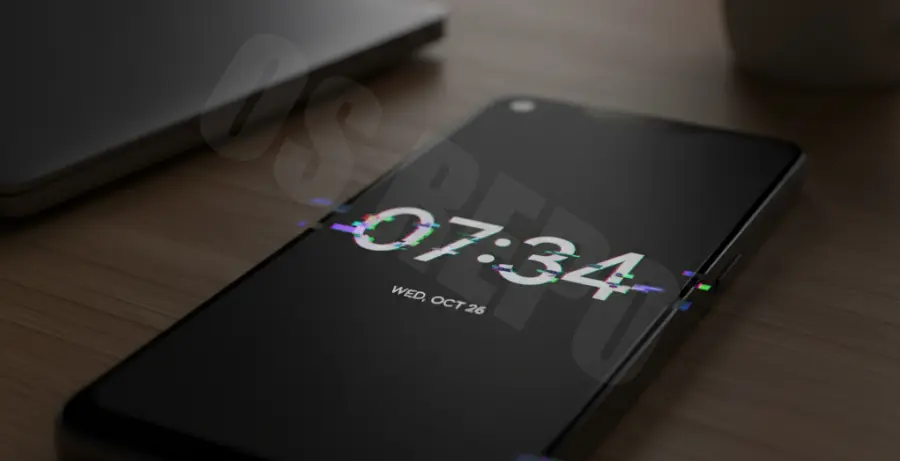
What is the Pixel 9 Screen Flickering Always On Display Issue?
The Pixel 9 screen flickering on Always-on Display (AOD) is a visual glitch where the screen pulses, flashes, or brightness levels shift rapidly while the phone is idle. This typically happens when the LTPO panel transitions between refresh rates.
Users report that the flickering is most noticeable in low-light environments. It often occurs when the device drops to its lowest refresh rate (1Hz or 10Hz) to save power during the AOD phase.
While often a software calibration issue, it can also be triggered by certain “Adaptive Brightness” settings or developer configurations that conflict with the display driver.
Step-by-Step Solutions
1. Toggle Smooth Display Settings
The most common fix involves resetting how the phone handles high refresh rates. Go to Settings > Display and find Smooth Display.
Turn the toggle OFF, wait ten seconds, and turn it back ON. This forces the display controller to recalibrate its switching logic between 60Hz and 120Hz.
2. Force Peak Refresh Rate (Developer Options)
If the flicker persists, you can stop the screen from dropping to lower frequencies. First, enable Developer Options by tapping “Build Number” seven times in About Phone.
Navigate to Settings > System > Developer options and enable Force peak refresh rate. This prevents the screen from idling at 1Hz, which is often where the flickering occurs.
Alternatively, if you have ADB access on a PC, you can check your refresh rate status using this command:
adb shell dumpsys display | grep "mLightSensor"3. Reset Adaptive Brightness
Sometimes the flickering is caused by the light sensor constantly hunting for the correct brightness level in AOD mode. Resetting the learning model can help.
Go to Settings > Apps > See all apps > Device Health Services > Storage & cache > Clear storage and select Reset adaptive brightness.
4. Disable Always-on Display
As a temporary workaround until a software update is released, you can disable the feature entirely. This will stop the flickering immediately by turning the pixels off when the phone is locked.
Go to Settings > Display > Lock screen and toggle off Always show time and info.
5. Install Pending System Updates
Google frequently releases display driver patches. Check for updates manually by going to Settings > System > System update. Ensure you are on the latest security patch, as these often contain “Display & Graphics” stability fixes.