Symptoms & Diagnosis
The “Cannot edit in read-only editor” error in Visual Studio Code is a common frustration for developers. It typically triggers when you attempt to type or delete code in an active tab, but the editor blocks input.
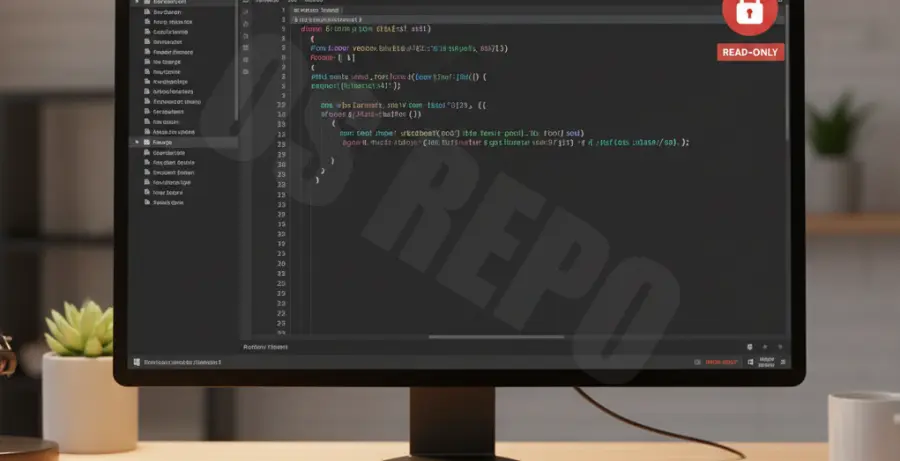
You can diagnose this issue by looking at the tab title. Often, a small lock icon appears next to the filename. Additionally, a notification toast usually pops up in the bottom right corner explicitly stating the file is read-only.
Common causes include restricted file system permissions, files located within the node_modules folder, or specific VS Code configuration settings that mark certain patterns as immutable.
Troubleshooting Guide
To resolve this, follow these steps categorized by the most likely root causes. Start with the simplest fix: checking the file attributes on your operating system.
Method 1: Change File System Permissions
If the file was created by another user or a system process, it might be locked at the OS level. You can use the terminal to grant write permissions.
# For Linux or macOS to grant write permissions
chmod +w path/to/your/file.js

# To change ownership if the file belongs to root
sudo chown yourusername path/to/your/file.js
On Windows, right-click the file in File Explorer, select Properties, and uncheck the Read-only attribute box at the bottom of the General tab.
Method 2: Update VS Code Read-Only Settings
VS Code has built-in settings that can force files to be read-only based on their path. This is often enabled for library files to prevent accidental edits.
| Setting Name | Description | Recommended Action |
|---|---|---|
| files.readonlyInclude | Paths that are always read-only. | Remove your file path from this list. |
| files.readonlyExclude | Paths exempted from read-only rules. | Add your project path here. |
| files.readonlyFromPermissions | Syncs VS Code status with OS permissions. | Ensure this is set to true/false based on preference. |
To access these, press Ctrl + , (or Cmd + , on Mac) and search for “readonly” in the settings search bar.
Method 3: Exit “Emergency” States
Sometimes VS Code enters a read-only state during a Git merge conflict or while a debugger is actively attached to a process that has locked the file. Try restarting the editor or completing the Git operation to release the lock.
Prevention
To prevent this from happening in the future, avoid running VS Code with administrative or root privileges unless absolutely necessary, as this can create files with restricted ownership.
Configure your .gitignore and project settings to ensure that build artifacts and dependency folders (like dist or vendor) are handled separately, as these are the most common sources of read-only errors.
Finally, periodically check your VS Code “User Settings” JSON file to ensure no global file patterns have been accidentally added to the files.readonlyInclude array.