| Issue | Primary Solution |
|---|---|
| Safari Extension Crash | Disable all extensions and re-enable them one by one. |
| Safari Blue Screen (BSOD) | Clear the Safari Cache and Containers via Library folders. |
| System Conflict | Update macOS to the latest version. |
| Cache Corruption | Run Terminal commands to reset the Safari internal state. |
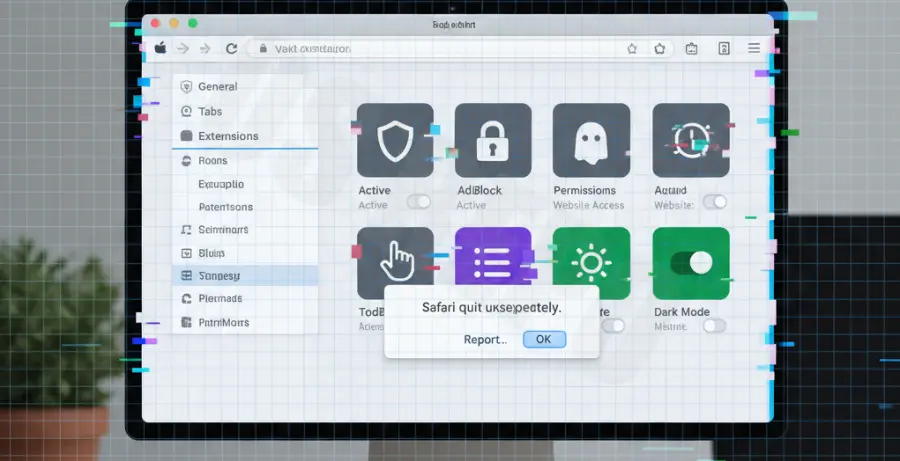
What is Safari Extension Crashing and the Blue Screen?
Safari extension crashing occurs when a third-party plugin fails to communicate with the WebKit engine. This often results in the browser freezing or displaying a blank screen, frequently referred to in the community as the “Safari Blue Screen” or “BSOD.”
Unlike a Windows BSOD, the Safari version typically involves a specific tab or the entire browser window turning a flat blue color before the application terminates. This is usually triggered by memory leaks or outdated extension code that is incompatible with the latest version of macOS.
Step-by-Step Solutions to Fix Safari Extensions
1. Isolate the Faulty Extension
The most common cause is a single malfunctioning plugin. You must disable all of them to identify the culprit.
Navigate to **Safari > Settings > Extensions**. Uncheck every box. Restart Safari. If it runs smoothly, enable each extension one at a time until the crash recurs.
2. Clear Safari Container Files
Corruption in the container files can lead to persistent crashing. You can manually remove these files to reset the environment for your extensions.
Close Safari and open the **Finder**. Press `Cmd + Shift + G` and enter the following path:
`~/Library/Containers/com.apple.Safari/Data/Library/Caches/`
Delete all files within this folder and restart your Mac.
3. Use Terminal to Reset Safari Cache
Sometimes the GUI method isn’t enough to clear deep-seated cache issues that cause the “Blue Screen” error. You can use the Terminal to force a refresh of the Safari cache system.
rm -rf ~/Library/Caches/com.apple.Safari
rm -rf ~/Library/Saved\ Application\ State/com.apple.Safari.savedState
killall Dock
4. Check for macOS Compatibility
Safari is tied directly to the macOS version. If your extensions are crashing, it may be because they are optimized for a newer WebKit version than what you currently have installed.
Go to **System Settings > General > Software Update**. Ensure you are not running a beta version of macOS, as these frequently break Safari extension hooks.
5. Reset Extension Permissions
Extensions require specific permissions to access websites. If these permissions are corrupted, the extension may crash when trying to load.
In **Safari Settings > Extensions**, select an extension and click “Edit Websites.” Remove all stored site permissions and allow the extension to ask for access again.