Immediate Fix: The “Cold Boot” Power Cycle
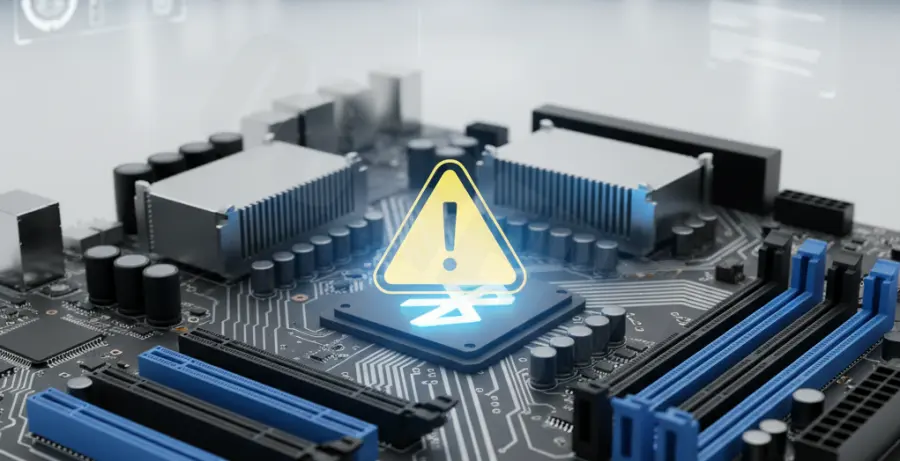
The yellow triangle on a Generic Bluetooth Adapter often signals a hardware hang-up where the motherboard BIOS fails to hand over control to the OS. This usually happens after a failed pairing attempt or a power surge.
To resolve this immediately, perform a “Cold Boot” to drain residual flea power from the Bluetooth module capacitors. Follow these steps:
- Shut down your PC completely.
- Unplug the power cable from the back of the PSU (or remove the battery if it is a laptop).
- Press and hold the physical Power Button for 30 seconds.
- Plug the power back in and boot into Windows.
This forces the motherboard to re-initialize the Bluetooth chip, often clearing the yellow exclamation mark without needing driver changes.
Technical Explanation: Why BIOS Pairing Fails
When you see “Generic Bluetooth Adapter” instead of a brand name like Intel or Realtek, Windows is using a fallback driver. This occurs because the device has reported a failure state (typically Code 10 or Code 43) to the system kernel.
The conflict often stems from the motherboard’s UEFI/BIOS. If a Bluetooth pairing fails at the hardware level during boot, the device enters a “locked” state. The OS cannot retrieve the device’s Hardware ID, so it defaults to a generic profile that cannot start.
| Status Code | Meaning | Primary Cause |
|---|---|---|
| Code 10 | Device cannot start | Firmware/BIOS handshake failure |
| Code 43 | Hardware reported failure | Power state inconsistency or bad driver |
Alternative Methods
Force Driver Re-enumeration
If the cold boot fails, you must force Windows to scrap the current device stack and rediscover the hardware. You can do this using the Command Prompt or PowerShell with administrative privileges.
# Run this in PowerShell as Admin to trigger a device hardware scan
pnputil /scan-devices
Manual Driver Assignment
Sometimes Windows ignores the specific manufacturer driver. You can manually point the Generic Adapter to the correct manufacturer files:
- Right-click the Generic Bluetooth Adapter in Device Manager.
- Select Update driver > Browse my computer for drivers.
- Select Let me pick from a list of available drivers.
- Uncheck “Show compatible hardware” and look for the specific manufacturer (e.g., Intel or Broadcom) to force the update.
BIOS Update and Bluetooth Radio Toggle
Ensure your motherboard BIOS is up to date. Many manufacturers release firmware patches specifically to address Bluetooth stability and “Generic Adapter” errors. Within the BIOS settings, try toggling the “Onboard Bluetooth” setting to Disabled, booting into Windows, then restarting and Enabling it again to reset the hardware flag.