| Issue | Common Causes | Primary Fix |
|---|---|---|
| Device Freezing | Memory leaks, incompatible apps, or background processes. | Force Restart (Volume Down + Power) |
| Random Restarting | Corrupt system cache or outdated firmware. | Wipe Cache Partition in Recovery Mode |
| Crash to Desktop | GPU driver glitches or UI system errors. | Update Software / Reset App Preferences |
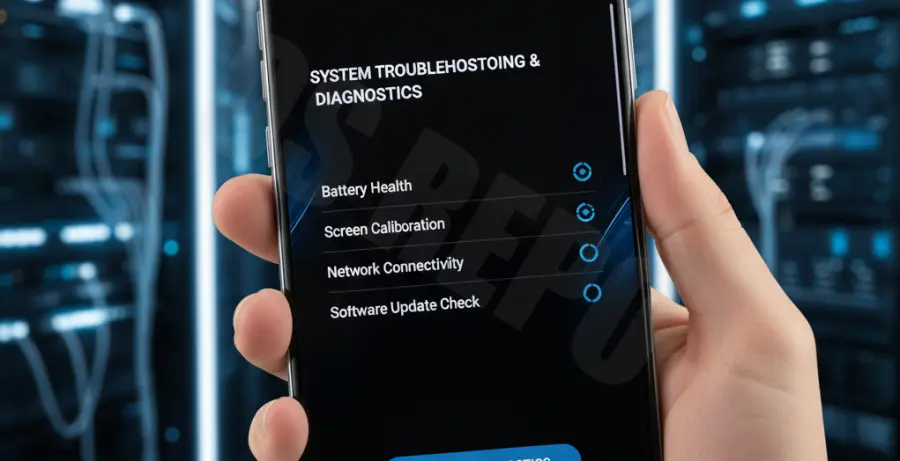
What is Galaxy S25 Ultra Freezing and Restarting?
Galaxy S25 Ultra freezing and restarting refers to a critical system instability where the device becomes unresponsive or spontaneously reboots. This is often described as a “Crash to Desktop” (CTD) when an active application suddenly closes, returning you to the home screen before the device locks up.
For a flagship device like the S25 Ultra, these issues are typically software-related. They often stem from “zombie” processes in the background, a saturated system cache, or third-party applications that haven’t been optimized for the latest One UI version.
In some cases, the device may enter a “boot loop,” where it restarts repeatedly. Identifying whether the cause is a specific app or a deeper system bug is the first step toward a permanent fix.
Step-by-Step Solutions
1. Perform a Force Restart
If your screen is completely frozen, a standard restart won’t work. You need to trigger a hardware-level reboot to clear the volatile memory (RAM).
Press and hold the Volume Down and Power (Side) buttons simultaneously for at least 10 to 15 seconds. Release them only when the Samsung Galaxy logo appears on the screen.
2. Wipe Cache Partition
The system cache stores temporary files that can become corrupted after a software update. Clearing this does not delete your personal data but can resolve deep-seated performance lags.
To access the Recovery Menu, follow these steps:
# Steps for S25 Ultra Recovery Mode:
1. Turn off the device.
2. Connect to a PC via USB-C cable (Required for newer models).
3. Press and hold Volume Up + Power buttons.
4. Use Volume keys to navigate to "Wipe Cache Partition".
5. Press Power button to select.
6. Select "Yes" and then "Reboot System Now".
3. Check for Rogue Apps in Safe Mode
If the freezing persists, a third-party app is likely the culprit. Safe Mode disables all downloaded apps, allowing you to see if the core OS is stable.
Hold the Power menu, then long-press the “Power Off” icon until the “Safe Mode” prompt appears. If the phone doesn’t crash in Safe Mode, start uninstalling your most recently downloaded apps.
4. Reset App Preferences
Sometimes, the “Crash to Desktop” occurs because of a conflict in how apps interact with system permissions. Resetting these preferences can refresh the link between the OS and your software.
Go to Settings > Apps. Tap the three-dot menu in the top right corner and select Reset app preferences. Confirm the action and restart your device normally.
5. Update System Firmware
Samsung frequently releases “Hotfix” updates for the S25 series to address stability issues. Ensure your device is running the latest build by navigating to Settings > Software update > Download and install.