Symptoms & Diagnosis
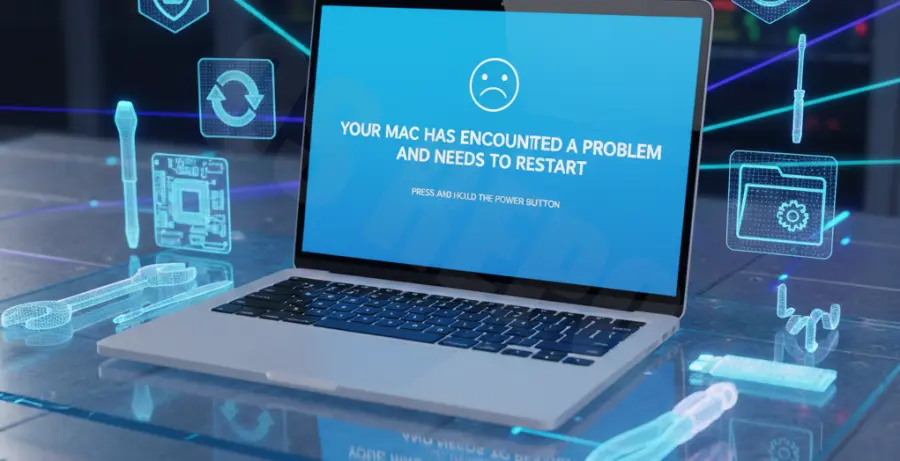
While macOS is generally stable, the release of macOS Sequoia has seen reports of a rare “Blue Screen of Death” (BSOD) or kernel panic. This typically manifests as a solid blue tint across the display followed by an immediate reboot or a complete system freeze.
Before proceeding with a fix, you must diagnose whether the issue is persistent. Common triggers include incompatible kernel extensions (kexts), corrupted system caches, or peripheral hardware conflicts during the boot sequence.
Look for signs like an infinite boot loop where the Apple logo appears, followed by a blue flicker. If you can reach the login screen before it crashes, the issue is likely software-related and fixable without data loss.
Troubleshooting Guide
1. Boot into Safe Mode
Safe Mode prevents third-party drivers and startup items from loading. This is the most effective way to access your files if the system is crashing.
For Apple Silicon (M1/M2/M3): Shut down, hold the Power button until “Loading startup options” appears, select your disk, hold Shift, and click “Continue in Safe Mode.”
2. Repair Disk Permissions via Terminal
Sometimes file system corruption causes the blue screen. You can run a check using the recovery terminal.
diskutil verifyVolume /Volumes/Macintosh\ HD3. Use Disk Utility First Aid
If the system won’t boot, use macOS Recovery. Select Disk Utility and run First Aid on your primary partition. Reference the table below for common status codes.
| Error Code | Meaning | Action Required |
|---|---|---|
| Exit Code 0 | No errors found. | System files are intact. |
| Exit Code 8 | File system corruption. | Run First Aid again or Reinstall. |
4. Reinstall macOS Sequoia (Keep Data)
The safest way to fix a corrupted OS without losing your photos or documents is a “dirty” reinstall. Boot into Recovery Mode and select “Reinstall macOS Sequoia.” This overwrites system files but leaves the /Users directory untouched.
Prevention
To prevent future macOS Sequoia blue screens, always ensure your third-party drivers (especially audio interfaces and VPNs) are updated for the new architecture.
Keep at least 20% of your SSD storage free. macOS uses this space for swap memory; when it runs out, kernel panics become much more frequent. Avoid using “Beta” versions of system utilities that modify the core file structure.