| Fix Type | Action Required |
|---|---|
| Primary Fix | Enable “Onboard Wi-Fi/Bluetooth” in BIOS settings. |
| Hardware Reset | Perform a cold boot (drain power for 30 seconds). |
| Software Fix | Reinstall Intel or AMD Bluetooth drivers. |
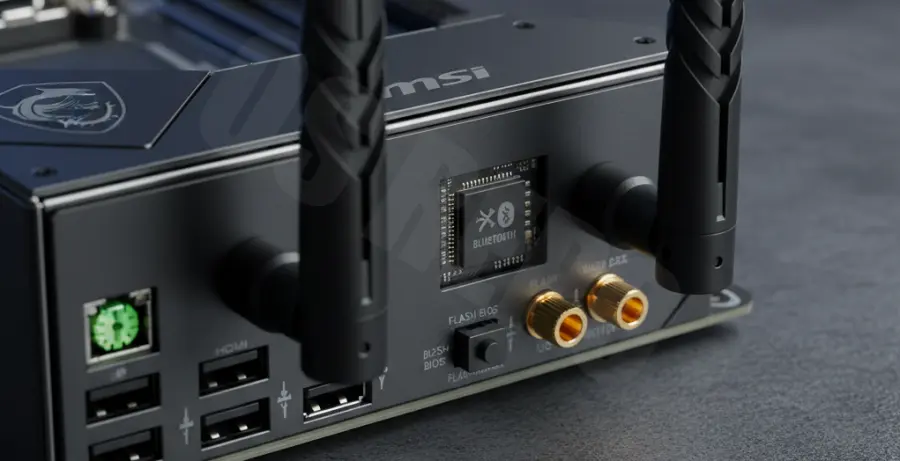
| Physical Check | Secure the external Wi-Fi/Bluetooth antennas. |
What is MSI Motherboard Bluetooth Not Working?
The “MSI motherboard bluetooth not working” issue refers to a failure where the Bluetooth radio is missing from Device Manager or cannot pair with devices. This often happens after a BIOS update or a sudden power surge.
In many cases, the motherboard fails to initialize the Bluetooth module during the POST (Power-On Self-Test) process. This results in the Bluetooth toggle disappearing from the Windows Settings menu entirely.
This problem is frequently linked to “pairing failed” errors in the BIOS environment or corrupted driver states. It affects MSI series like the MPG, MAG, and MEG motherboards with built-in wireless modules.
Step-by-Step Solutions
1. Enable Bluetooth in the MSI BIOS
If the Bluetooth hardware is disabled at the firmware level, Windows cannot see it. You must ensure the onboard module is active.
Restart your PC and tap the Delete key repeatedly to enter the BIOS. Switch to Advanced Mode (F7). Navigate to Settings > Advanced > Integrated Peripherals. Look for “Onboard Wi-Fi/BT Module” and set it to Enabled.
2. Perform a Cold Boot (Power Cycle)
MSI motherboards sometimes experience a “static charge” lock on the Bluetooth chip. A simple restart won’t fix this; you need to drain the power.
Shut down your computer. Unplug the power cable from the PSU. Hold down the PC power button for 30 seconds. Plug it back in and boot up. This forces the motherboard to re-initialize all onboard components.
3. Reset the Bluetooth Support Service
Sometimes the hardware is fine, but the Windows service responsible for discovery has stalled. You can restart this via the command line or services menu.
# Run these commands in an admin terminal to refresh radio states
net stop bthserv
net start bthserv
4. Update the BIOS and Drivers
Outdated firmware can cause “Bluetooth Pairing Failed” errors. Visit the MSI Support page for your specific motherboard model.
Download the latest BIOS file and flash it using M-Flash. Additionally, download the specific Intel or AMD BlueTooth driver package provided by MSI, as generic Windows Update drivers often lack the necessary hardware IDs.
5. Reseat the Antennas
It sounds simple, but the Bluetooth signal on MSI boards relies heavily on the external Wi-Fi antennas. If they are loose, the signal strength will be too low for pairing.
Ensure both gold-plated connectors on the rear I/O shield are screwed in tightly. Even if you use Ethernet for internet, these antennas are mandatory for a stable Bluetooth connection.