Immediate Fix
When your Kali Linux XFCE desktop freezes or crashes, the fastest solution is to restart the display manager. This force-reloads the graphical interface without requiring a full system reboot.
Press CTRL + ALT + F1 (or F2-F6) to enter the TTY terminal. Login with your credentials and execute the following command:
sudo systemctl restart lightdmIf the desktop environment loads but remains glitchy, you may need to clear the XFCE session cache. Corrupted session files often prevent the desktop from initializing correctly.
rm -rf ~/.cache/sessions/*Technical Explanation
XFCE crashes in Kali Linux usually stem from one of three areas: display manager conflicts, driver incompatibilities, or resource exhaustion. Because Kali is based on Debian Testing, updates can occasionally cause temporary regressions in the xfce4-panel or xfwm4 window manager.
The following table outlines the primary technical triggers for these crashes:
| Trigger Component | Root Cause | System Impact |
|---|---|---|
| LightDM | Configuration Mismatch | Login loop or black screen |
| Xfwm4 | Compositor Errors | Window borders disappear or freeze |
| GPU Drivers | Incompatible Kernel Modules | Total system hang during GUI load |
Additionally, if your virtual machine or hardware runs out of disk space, XFCE will fail to write session data, leading to an immediate crash back to the login screen.
Alternative Methods
Method 1: Reinstalling the XFCE Desktop
If the configuration files are deeply corrupted, reinstalling the core desktop package is the most reliable fix. This ensures all binary files are intact.
sudo apt update
sudo apt install --reinstall kali-desktop-xfce xfce4*
Method 2: Fix Broken Dependencies
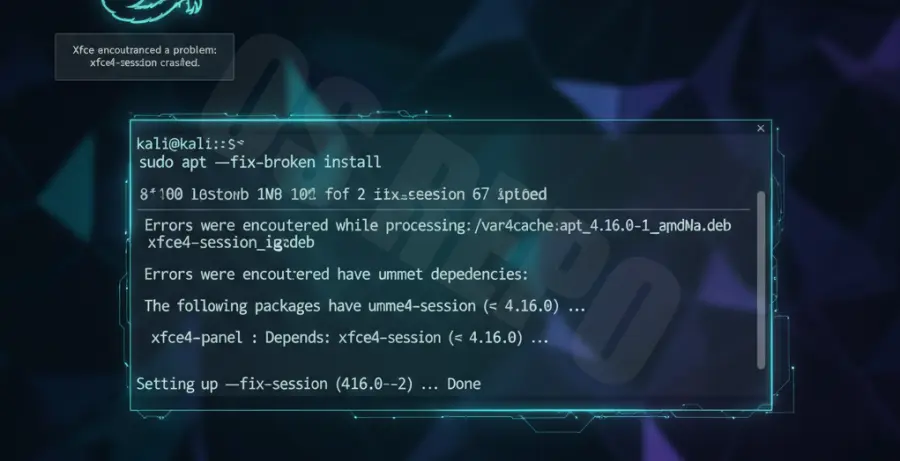
Partial updates can leave the system in an unstable state. Running a fix-broken install can resolve library conflicts that cause the XFCE panel to crash.
sudo apt --fix-broken install
sudo apt update && sudo apt full-upgrade -y
Method 3: Reset XFCE to Default Settings
If the crash is caused by a faulty plugin or theme, you can reset XFCE to its “out-of-the-box” state. Note that this will remove your desktop customizations.
mkdir ~/.xfce4-backup
mv ~/.config/xfce4/* ~/.xfce4-backup/
xfce4-panel --quit
xfconfd --quit
rm -rf ~/.config/xfce4
reboot