Symptoms & Diagnosis
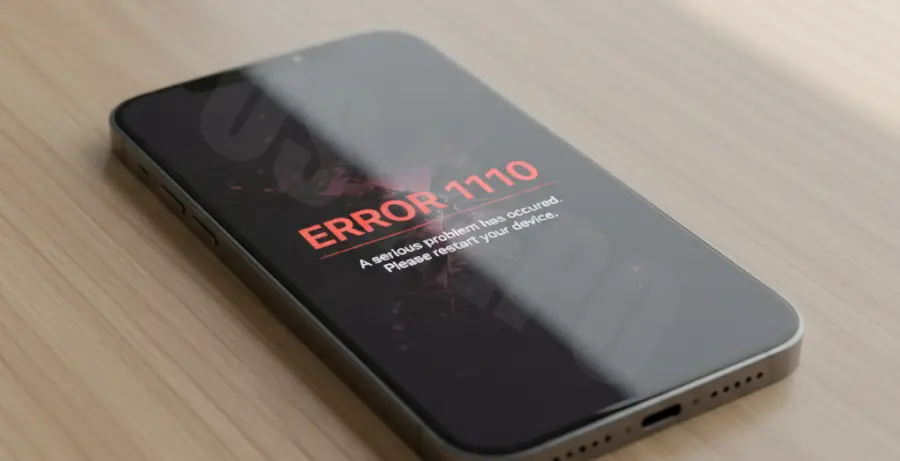
The iPhone 16 Pro Error 1110 is a specific system failure typically triggered during an iOS update. It is most commonly associated with a device running out of storage space.
Common symptoms include your iPhone 16 Pro getting stuck in a continuous boot loop or remaining frozen on the Apple logo. When connected to a computer, Finder or iTunes will display the message: “The iPhone could not be updated. An unknown error occurred (1110).”
Diagnosis involves identifying if the storage was at 99% capacity before the crash. Because the file system has no room to “breathe” or move temporary files during an update, the installation fails and locks the user out of the UI.
Troubleshooting Guide
To resolve Error 1110, you must attempt to clear the system cache or force a software update that bypasses the storage bottleneck. Follow these steps carefully.
Method 1: Recovery Mode Update
First, connect your iPhone 16 Pro to a Mac or PC. Quickly press and release the Volume Up button, then the Volume Down button. Finally, press and hold the Side Button until the recovery mode screen (computer icon) appears.
On your computer, select the “Update” option. Do NOT select “Restore” unless you have a backup, as Restoring will wipe your data. The Update process will attempt to reinstall the OS while keeping your files intact.
Comparison of Fix Methods
| Fix Method | Difficulty | Data Risk |
|---|---|---|
| Force Restart | Low | None |
| Recovery Update | Medium | Low |
| DFU Restore | High | High (Data Loss) |
Advanced Terminal Monitoring
If you are using a Mac to troubleshoot, you can monitor the communication between your computer and the iPhone to see if the file system is mounting. Use this command in Terminal:
# Check for connected Apple mobile devices in system logs
log show --predicate 'process == "mobiledeviceupdater"' --last 5m
Prevention
Preventing Error 1110 is much easier than fixing it. The primary cause is a full disk, so you should always maintain at least 5GB to 10GB of free space on your iPhone 16 Pro.
Enable the “Offload Unused Apps” feature in Settings. This automatically removes the app binaries while keeping your personal data, freeing up critical space for system updates.
Regularly sync your high-resolution photos and 4K videos to iCloud or an external drive. By keeping your storage levels healthy, you ensure the iOS file system has enough overhead to perform routine maintenance without crashing.