Symptoms & Diagnosis
The iPhone 16 Pro error 0xE80000A is a common communication fault that occurs when the device fails to establish a secure handshake with a computer. This usually happens during a sync, backup, or restore process via iTunes or the macOS Finder.
Users typically encounter a pop-up window stating, “iTunes could not connect to this iPhone. An unknown error occurred (0xE80000A).” This suggests that while the hardware might be physically connected, the software layer is blocking the data exchange.
| Symptom | Primary Cause |
|---|---|
| Connection Timeout | Outdated iTunes or macOS version. |
| Device Not Recognized | Damaged USB-C cable or port. |
| Security Handshake Failure | Corrupted Lockdown folder permissions. |
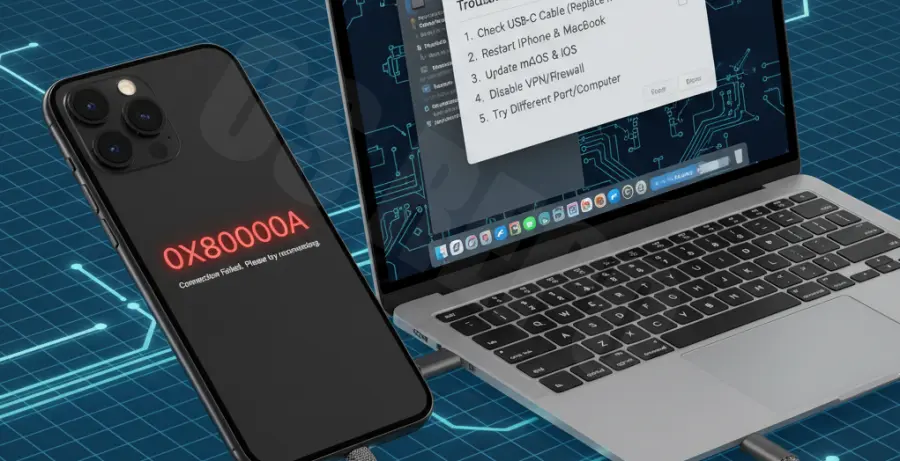
Troubleshooting Guide
Step 1: Update Your Environment
The iPhone 16 Pro utilizes the latest iOS architecture. If your Mac or Windows PC is running an outdated version of iTunes or the OS, it will fail to recognize the device protocols. Ensure you are on the latest version of macOS or iTunes 12.13+.
Step 2: Reset the Lockdown Folder
The Lockdown folder stores security certificates required for the computer to “trust” the iPhone. If these files become corrupt, the 0xE80000A error triggers. On Windows, you can clear this cache by navigating to the following directory:
# Open Run (Win + R) and type:
%ProgramData%\Apple\Lockdown
Delete all files within this folder (do not delete the folder itself) and restart your PC. Reconnect your iPhone 16 Pro and tap “Trust” when the prompt appears.
Step 3: Check USB-C Connectivity
Ensure you are using an Apple-certified MFi cable. Disconnect all other USB peripherals from your computer to prevent power fluctuations or driver conflicts. Try switching to a port directly on the motherboard rather than a USB hub.
Prevention
To prevent the iPhone 16 Pro error 0xE80000A from recurring, always maintain a routine of software updates for both your mobile device and your desktop environment.
Avoid using third-party uncertified cables, as they often lack the data pins necessary for high-speed synchronization. Regularly clearing your computer’s temporary cache and ensuring your security software does not block Apple-related background processes will also maintain a stable connection.