Immediate Fix: Adjusting Power Policy and Cooling State
To prevent immediate unexpected shutdowns on Windows Server 2022, you must ensure the system cooling policy is set to “Active.” This forces the OS to increase fan speeds before throttling the processor or triggering a thermal shutdown.
Follow these steps to adjust your power settings:
1. Open the **Control Panel** and navigate to **Power Options**.
2. Select **Change plan settings** next to your active power plan (usually High Performance).
3. Click on **Change advanced power settings**.
4. Expand **Processor power management** and then **System cooling policy**.
5. Set both “On battery” and “Plugged in” to **Active**.
6. Expand **Maximum processor state** and consider reducing it to **95%** as a temporary throttle to lower heat output.
| Setting | Recommended Value | Impact |
|---|---|---|
| System Cooling Policy | Active | Increases fan speed before slowing CPU |
| Minimum Processor State | 5% – 10% | Allows CPU to cool down during idle |
| Maximum Processor State | 90% – 100% | Limits peak heat generation |
Technical Explanation: Thermal Thresholds in Windows Server 2022
Windows Server 2022 relies on ACPI (Advanced Configuration and Power Interface) to communicate with the motherboard’s thermal sensors. When a sensor detects temperatures exceeding the “Critical Trip Point,” the kernel initiates an immediate shutdown to protect hardware from permanent damage.
Unexpected shutdowns often leave specific traces in the Windows Event Viewer. You should look for **Event ID 41 (Kernel-Power)** or **Event ID 6008**. These indicate the system went down without a clean signal, often due to a hardware-level thermal trigger.
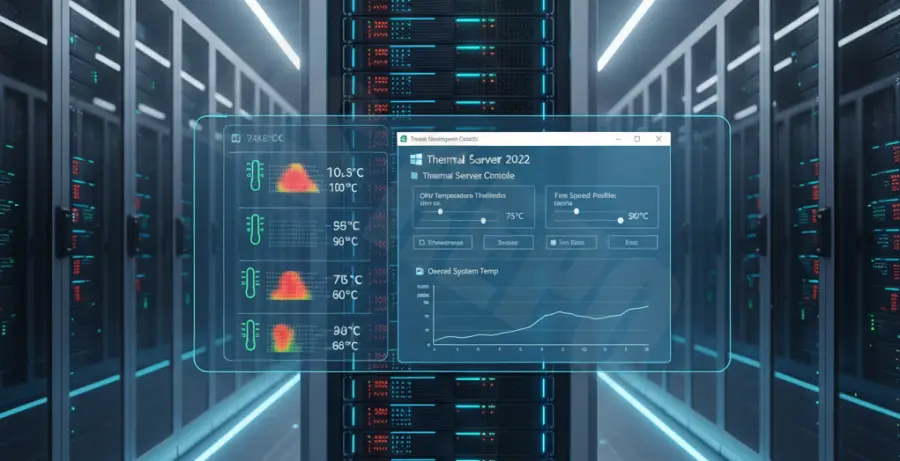
In many cases, the “Overheating Warning” occurs because the server’s firmware (BIOS/UEFI) and the OS are misaligned on fan curves. If the OS is set to a “Passive” cooling policy, it will attempt to slow the CPU frequency rather than ramp up the fans, leading to a heat soak that eventually triggers a hard shutdown.
Alternative Methods: PowerShell Monitoring and Hardware Validation
You can use PowerShell to query the current temperature of your thermal zones. This helps determine if the overheating is localized to a specific CPU or a general ambient temperature issue within the chassis.
Run the following command in an elevated PowerShell window:
Get-WmiObject -Namespace root\wmi -Class MSAcpi_ThermalZoneTemperature | Select-Object -Property InstanceName, @{n='TempCelsius';e={($_.CurrentTemperature - 2732) / 10}}If the software tweaks do not resolve the issue, consider these hardware-level steps:
Update Firmware and Drivers
Manufacturers like Dell, HP, and Lenovo frequently release BIOS/UEFI updates specifically to address fan control logic and thermal management. Ensure your chipset drivers and BMC (Baseboard Management Controller) firmware are up to date.
Hardware Maintenance
Dust accumulation in server racks can significantly impede airflow. Use compressed air to clear the heat sinks and verify that all redundant power supplies and fans are operational. If one fan in a redundant array fails, the remaining fans may not be able to compensate during peak loads on Windows Server 2022.
Check BMC/IPMI Logs
Logs from iDRAC, iLO, or generic IPMI interfaces often provide the most accurate hardware temperature data. Check these logs for “Lower Critical” or “Upper Critical” threshold violations that occur before the Windows OS even registers the heat spike.