Symptoms & Diagnosis
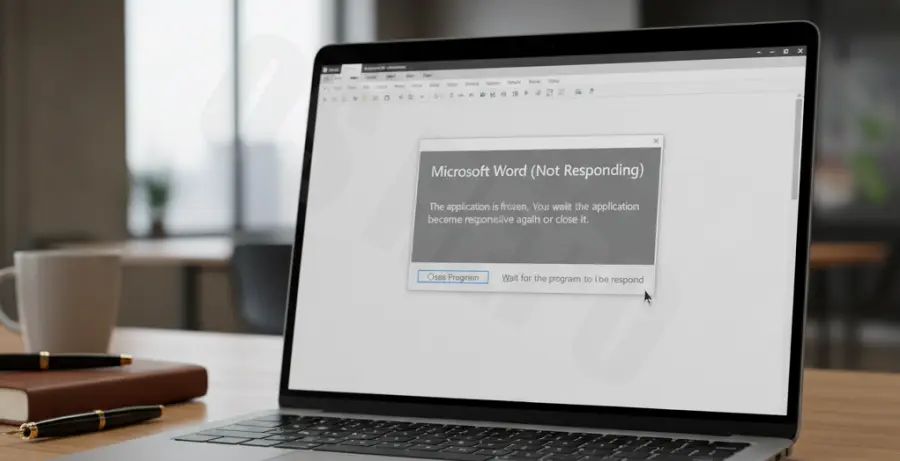
When Microsoft Word stops responding on a laptop, it typically presents as a complete freeze of the application interface. You may notice the window becoming translucent or white, accompanied by the “Not Responding” text appearing in the title bar.
Diagnosing the root cause involves checking for system-wide lag or application-specific stalls. If the cursor remains a spinning blue circle only when hovering over the Word window, the issue is likely isolated to the software or a specific document.
Heavy CPU usage or insufficient RAM on a laptop can also trigger this state. Using the Task Manager (Ctrl + Shift + Esc) allows you to see if Word is consuming excessive resources or if the hardware is simply overwhelmed by background tasks.
Troubleshooting Guide
To fix Microsoft Word when it becomes unresponsive, you should follow a systematic approach. The goal is to isolate whether the fault lies in the application settings, a corrupt template, or a third-party add-in.
| Fixing Method | Primary Target | Success Rate |
|---|---|---|
| Safe Mode Launch | Plugin/Add-in Conflicts | High |
| Online Repair | Corrupt Installation Files | Medium |
| Printer Driver Update | Pagination Errors | Low |
Run Word in Safe Mode
Launching Word in Safe Mode is the most effective way to bypass faulty extensions. This mode loads the core application without any third-party add-ins or customized templates. To do this, press Win + R and type:
winword /safeDisable Hardware Graphics Acceleration
Laptops with integrated graphics often struggle with Word’s hardware acceleration feature. If you can get Word to open momentarily, navigate to File > Options > Advanced and check the box for “Disable hardware graphics acceleration” under the Display section.
Repair Microsoft Office
If the application continues to hang, the installation files may be damaged. Go to Control Panel > Programs and Features, select your Microsoft Office version, and click Change. Select “Online Repair” to refresh the core files.
Prevention
Maintaining a stable environment is key to preventing Word from freezing. Regularly update your laptop’s BIOS and graphics drivers, as Word relies heavily on system rendering resources for long documents.
Avoid keeping too many browser tabs open simultaneously if your laptop has 8GB of RAM or less. This ensures Word has enough memory overhead to perform AutoSave operations without timing out.
Finally, keep your document file sizes optimized. If your document contains many high-resolution images, use the “Compress Pictures” tool to reduce the strain on the laptop’s processor during editing sessions.