Symptoms & Diagnosis
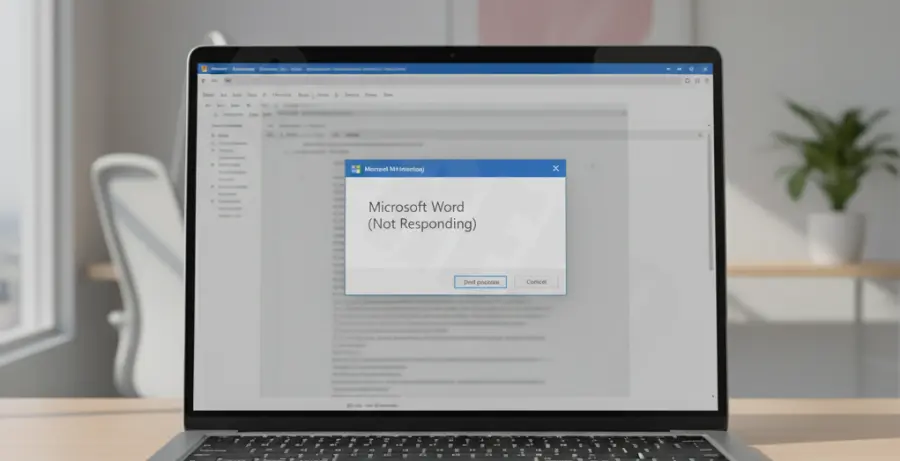
Microsoft Word often displays a “Not Responding” message in the title bar when the application hangs or encounters a conflict. This behavior typically occurs when Word is trying to access a file, a network resource, or an external printer that is no longer available.
Common symptoms include a white screen overlay across the document, a spinning blue cursor, and the inability to click any ribbon menu items. In some cases, the application may simply close without warning or freeze during the “Starting” splash screen phase.
To diagnose the root cause, you should observe when the freeze occurs. Does it happen only when opening specific documents, or does it happen even with a blank file? This distinction helps determine if the issue lies within the software installation or a corrupted file.
Troubleshooting Guide
The first step in resolving a hang is to force-quit the application. Press Ctrl + Shift + Esc to open Task Manager, locate Microsoft Word, and click “End Task.” This clears the frozen instance from your system memory.
Launch Word in Safe Mode
Safe Mode allows you to open Word without loading add-ins or templates. This is the most effective way to determine if a third-party extension is causing the crash.
winword /safePress Windows + R, type the command above into the Run dialog, and press Enter. If Word opens normally, the issue is likely a faulty add-in.
Run the Microsoft Office Repair Tool
Windows includes a built-in utility to repair corrupted installation files. This is often necessary if the system files have been damaged by a recent update or a sudden power loss.
| Repair Type | Description | Time Estimate |
|---|---|---|
| Quick Repair | Fixes most issues by checking common file errors. | 2-5 Minutes |
| Online Repair | Reinstalls the software while keeping your settings. | 10-20 Minutes |
To access this, go to Control Panel > Programs and Features, right-click “Microsoft 365” or “Office,” and select Change.
Rename the Normal Template
If Word freezes every time it starts, the global template (Normal.dotm) might be corrupted. Renaming it forces Word to create a fresh, clean version.
Navigate to %appdata%\Microsoft\Templates in File Explorer. Find Normal.dotm and rename it to Normal.old. Restart Word to see if the responsiveness returns.
Prevention
Preventing “Not Responding” errors requires regular maintenance of your Office suite. Always ensure you are running the latest version by checking File > Account > Update Options.
Avoid running too many high-resource applications simultaneously if your RAM is limited. Word requires significant resources when processing large documents with many images or complex formatting.
Finally, keep your printer drivers updated. Word queries the default printer every time it opens a document; an outdated or disconnected network printer is one of the leading causes of application hangs.