Symptoms & Diagnosis
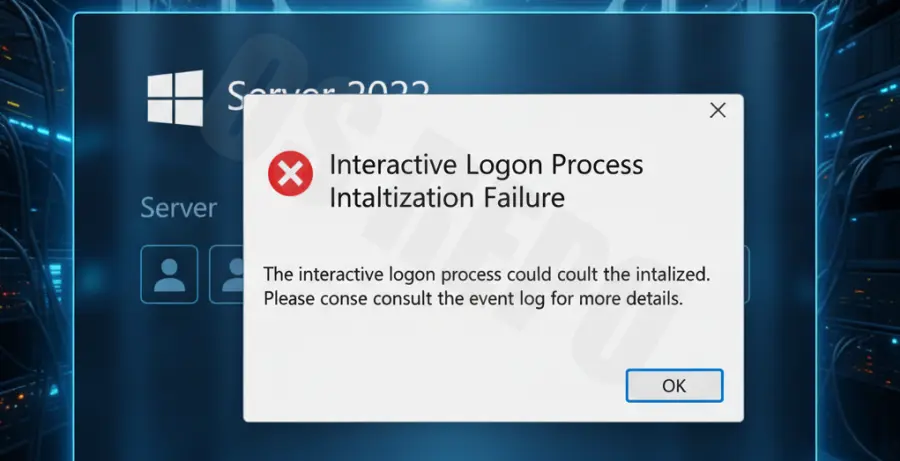
The “Interactive logon process initialization has failed” error on Windows Server 2022 is a critical stop error that occurs before the user desktop loads. This error typically prevents any local or remote desktop protocol (RDP) sessions from establishing successfully.
Administrators usually encounter a black screen or a logon message box stating the process failed. This is often triggered by system file corruption, registry inconsistencies, or exhausted system resources after an improper shutdown or a failed Windows Update.
| Symptom | Potential Root Cause |
|---|---|
| Black screen after credentials | Userinit.exe process failure or registry path error |
| LogonUI.exe Application Error | Corrupted system DLLs or third-party credential providers |
| Immediate Logout after Login | Incorrect shell values in the Windows Registry |
To diagnose the issue, check the System Event Log via Event Viewer (if accessible via Remote Registry or Recovery Environment). Look for Event ID 4005, which explicitly indicates that the Windows logon process has terminated unexpectedly.
Troubleshooting Guide
Step 1: Use System File Checker (SFC) and DISM
Since the GUI is inaccessible, boot into the Windows Recovery Environment (WinRE) or use a Windows Server 2022 installation media. Open the Command Prompt and run the following commands to repair the component store:
sfc /scannow /offbootdir=C:\ /offwindir=C:\Windows
dism /image:C:\ /cleanup-image /restorehealth
Step 2: Verify the Userinit Registry Key
Corruption in the registry path for the logon process is a common culprit. You must load the SYSTEM hive from the recovery console or a remote registry editor to verify the following path:
HKEY_LOCAL_MACHINE\SOFTWARE\Microsoft\Windows NT\CurrentVersion\Winlogon
Ensure the Userinit string value points exactly to:
C:\Windows\system32\userinit.exe,Note: The comma at the end is mandatory for this specific string value.
Step 3: Run Check Disk (Chkdsk)
If the error is caused by file system metadata corruption, running a disk check can resolve the initialization failure. Execute the following command from the Recovery Environment:
chkdsk C: /f /rStep 4: Roll Back Pending Updates
If this issue started immediately after a patch cycle, use the following command to identify and remove pending packages that might be stuck in an “Installation Pending” state:
dism /image:C:\ /get-packages
dism /image:C:\ /remove-package /packagename:[PackageName]
Prevention
To prevent the interactive logon process from failing in the future, ensure that your Windows Server 2022 instances are backed up using VSS-aware backup solutions. This allows for quick file-level or image-level restoration.
Implement a staging environment for Windows Updates. Never push updates to production servers without verifying them in a test lab, as “Interactive logon” failures are frequently linked to specific cumulative update bugs.
Monitor disk health and system resources. Use Performance Monitor or third-party tools to alert you when the C: drive is low on space, as a full system drive can prevent the logon process from creating the necessary temporary files during initialization.
Finally, ensure that third-party security agents or antivirus software are kept up to date. These applications often hook into the logon process and can cause initialization failures if they are incompatible with the latest Windows Server kernel updates.