| Issue | Excel 365 Crashes to Desktop (CTD) |
|---|---|
| Primary Trigger | Copying and Pasting cells, formulas, or formatting. |
| Common Root Causes | Corrupt Add-ins, Clipboard History conflicts, or Hardware Acceleration. |
| Quick Fix | Clear Clipboard or Launch in Safe Mode. |
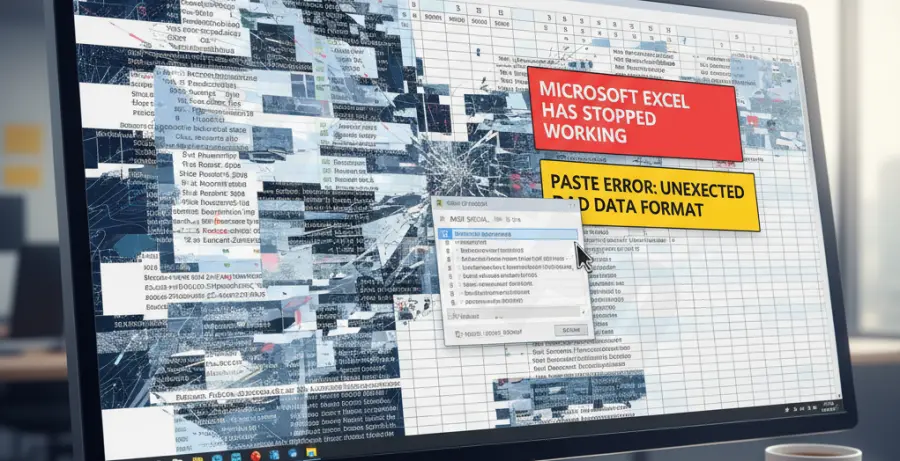
What is Excel Crashing When Copying and Pasting?
Excel crashing when copying and pasting is a specific stability issue where the application abruptly closes and returns to the desktop. This is commonly referred to as a “Crash to Desktop” (CTD).
In Microsoft 365, this typically occurs because the clipboard buffer is overwhelmed or a third-party add-in interferes with the memory address being used for the “paste” command. It can also happen when copying large amounts of data between different instances of the app.
Users often experience this without any warning or error code. The application simply vanishes, often leading to a loss of unsaved work and progress.
Step-by-Step Solutions
1. Clear the Windows Clipboard History
Often, the conflict isn’t in Excel itself, but in the Windows Clipboard manager. Accumulated data can cause memory leaks during a paste operation.
Go to Settings > System > Clipboard. Toggle “Clipboard history” to Off and then back to On, or click the Clear button under “Clear clipboard data.”
2. Launch Excel in Safe Mode
To determine if a plugin or custom toolbar is causing the crash, try running Excel without any extensions.
Press Win + R, type the following command, and hit Enter:
excel /safeTry the copy-paste action again. If it doesn’t crash, an add-in is the culprit. You should then disable add-ins one by one via File > Options > Add-ins.
3. Disable Hardware Graphics Acceleration
In some versions of Excel 365, the visual “marching ants” border that appears when copying triggers a GPU conflict. While the setting is sometimes hidden in the UI, you can toggle it via the Registry or check File > Options > Advanced > Display.
Check the box for “Disable hardware graphics acceleration” if it is available in your build. This reduces the strain on the video driver during UI-heavy tasks.
4. Repair Microsoft Office 365
If the application files are corrupted, a Quick Repair can often resolve internal execution errors.
Open the Control Panel > Programs and Features. Right-click Microsoft 365 and select Change. Choose Quick Repair and follow the prompts.
5. Check for Large “Objects”
Sometimes, copying a column accidentally copies thousands of invisible text boxes or shapes. This bloats the clipboard and forces a crash.
Press F5, click Special, select Objects, and click OK. If thousands of small dots appear, press Delete to clear them and try copying again.