| Solution | Difficulty | Estimated Time |
|---|---|---|
| Clear AppData & LocalAppData | Medium | 5 Minutes |
| End Notion Background Processes | Easy | 2 Minutes |
| Run as Administrator | Easy | 1 Minute |
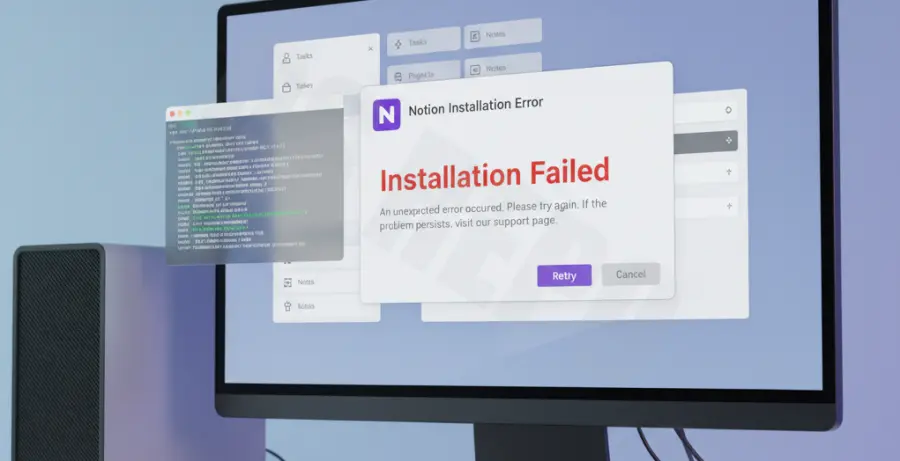
What is the Notion Installation Error “Check Setup Log”?
The Notion installation error “Check setup log” typically occurs on Windows systems when the Squirrel installer encounters a conflict. This usually happens during an update or a re-installation of the desktop app.
The error indicates that the installer cannot overwrite existing files or lacks the necessary permissions to modify the system directory. It points users to a log file that contains technical details about why the process failed.
Common causes include leftover registry keys, corrupted cache files in the AppData folder, or active Notion processes running in the background that prevent the installer from replacing files.
Step-by-Step Solutions
1. Terminate Notion Background Processes
Before attempting a fresh install, ensure no instances of Notion are running. Even if the window is closed, background processes can lock the installation folder.
Open the Task Manager (Ctrl + Shift + Esc) and look for any “Notion” entries under the Processes tab. Right-click them and select “End Task.”
2. Clear Notion AppData Folders
The most effective fix is removing leftover configuration files. This forces the installer to create a clean environment.
Run the following commands to navigate to the hidden folders and delete the “Notion” directories:
# Open the Run dialog (Win + R) and type:
%AppData%
# Locate and delete the 'Notion' folder.

# Open the Run dialog (Win + R) again and type:
%LocalAppData%
# Locate and delete the 'Notion' folder.
3. Reinstall with Administrative Privileges
Sometimes the installer fails because it cannot write to the “Local” directory without elevated permissions. This is common in managed or restricted Windows environments.
Right-click the Notion Setup.exe file you downloaded and select “Run as administrator.” This bypasses most permission-related blocks found in the setup log.
4. Check for Windows Updates
The Notion desktop app relies on specific Windows frameworks. Ensure your OS is up to date, as missing .NET Framework components can cause the Squirrel installer to crash.
Go to Settings > Update & Security > Windows Update and click “Check for updates” before trying the installation again.