Symptoms & Diagnosis
The iPhone 16 Pro is a powerhouse, but it is not immune to initial setup hurdles. Users often report getting stuck on the “Signing in to Apple ID” screen, where the loading spinner rotates indefinitely without progressing.
Common symptoms include a frozen screen during the iCloud configuration phase, “Verification Failed” pop-ups, or the device becoming unusually warm while attempting to connect to Apple’s servers.
| Symptom | Potential Root Cause |
|---|
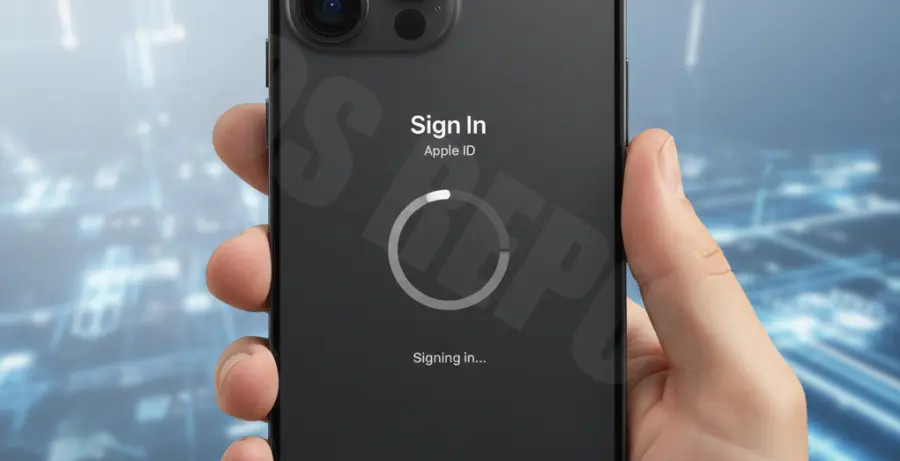
To diagnose the issue, first check if the device responds to physical buttons. If the hardware is responsive, the bottleneck is likely server-side or network-related rather than a hardware defect in your new iPhone 16 Pro.
Troubleshooting Guide
1. Force Restart your iPhone 16 Pro
A force restart can clear temporary cache files that might be blocking the authentication process. This does not erase your data.
# Follow this sequence quickly:
1. Press and release Volume Up.
2. Press and release Volume Down.
3. Press and hold the Side Button until the Apple logo appears.
2. Check Apple System Status
Sometimes the problem isn’t your phone; it’s Apple’s servers. High traffic during new iPhone launches can cause delays. Visit the official Apple System Status page to ensure “Apple ID” and “iCloud Account & Sign In” have a green status icon.
3. Toggle Airplane Mode or Switch Networks
Authentication requires a stable handshake with Apple’s servers. If your Wi-Fi is using a strict firewall or a VPN, the connection may fail. Try switching to cellular data or a different Wi-Fi network to bypass local interference.
4. Skip Sign-In During Initial Setup
If you are stuck during the “Out of Box” experience, select “Forgot password or don’t have an Apple ID?” and then choose “Set Up Later in Settings.” Once you reach the Home Screen, you can sign in via the Settings app, which is often more stable.
Prevention
To avoid future Apple ID login issues on your iPhone 16 Pro, ensure that your device is always running the latest version of iOS. Apple frequently releases “day-one” patches for new hardware to fix activation bugs.
Always maintain a backup of your previous device on iCloud or a Mac. This ensures that if a sign-in error occurs, you can reset the device and attempt a restore from a known stable state.
Lastly, ensure your Apple ID has updated security information. Outdated recovery emails or phone numbers can cause the 2FA (Two-Factor Authentication) process to hang, leading to the “stuck” screen on your new device.