| Fix Type | Action Required | Estimated Time |
|---|---|---|
| Quick Fix | Toggle Bluetooth & Restart iPhone | 2 Minutes |
| Network Fix | Reset Network Settings | 5 Minutes |
| Device Fix | Forget and Re-pair Device | 3 Minutes |
| System Fix | Update to latest iOS 18 version | 15 Minutes |
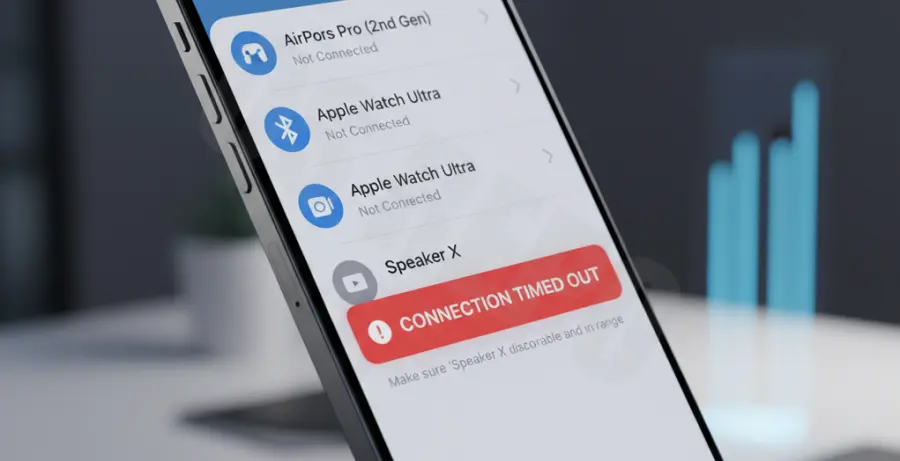
What is iPhone 16 Pro Bluetooth Connection Timed Out?
The “Connection Timed Out” error on the iPhone 16 Pro occurs when the device fails to establish a handshake with a peripheral within a specific timeframe. This usually happens during the initial pairing process or when reconnecting to saved accessories.
This error is often linked to software glitches in iOS 18, signal interference, or corrupted cache files in the Bluetooth stack. Because the iPhone 16 Pro utilizes the latest Bluetooth 5.3 standard, compatibility issues with older legacy devices can also trigger this timeout.
Step-by-Step Solutions
1. Toggle Bluetooth and Force Restart
Sometimes the Bluetooth daemon (the background process) hangs. Toggling the radio off and on can refresh the search cycle.
To force restart your iPhone 16 Pro:
1. Press and quickly release Volume Up.
2. Press and quickly release Volume Down.
3. Hold the Side Button until the Apple logo appears.
2. Forget and Re-pair the Accessory
Removing the corrupted pairing profile is the most effective way to resolve handshake failures.
1. Open Settings > Bluetooth.
2. Tap the “i” icon next to your device.
3. Select Forget This Device.
4. Put your accessory into discovery mode and try again.
3. Reset Network Settings
If the timeout persists, the system’s networking configuration might be corrupted. This action resets Bluetooth, Wi-Fi, and VPN settings without deleting your personal data.
# System Reset Procedure for iPhone 16 Series
1. Open Settings app
2. Navigate to General -> Transfer or Reset iPhone
3. Tap Reset
4. Select "Reset Network Settings"
5. Confirm with Device Passcode
4. Check for Software Updates
Apple frequently releases “Point” updates (e.g., iOS 18.0.1) to fix connectivity bugs specifically for the newest hardware models.
Go to Settings > General > Software Update to ensure your iPhone 16 Pro is running the latest firmware patches.
5. Reset All Settings
If none of the above work, there may be a deeper conflict in the system preferences. This will return all system settings to default but will keep your photos and apps.
1. Go to Settings > General.
2. Tap Transfer or Reset iPhone.
3. Tap Reset > Reset All Settings.