| Problem | Word Installation Error 30068 |
|---|---|
| Common Causes | Disabled Click-to-Run service, Corrupt installation files, Firewall interference. |
| Quick Fix | Restart the “Microsoft Office Click-to-Run Service” in Windows Services. |
| Difficulty Level | Intermediate |
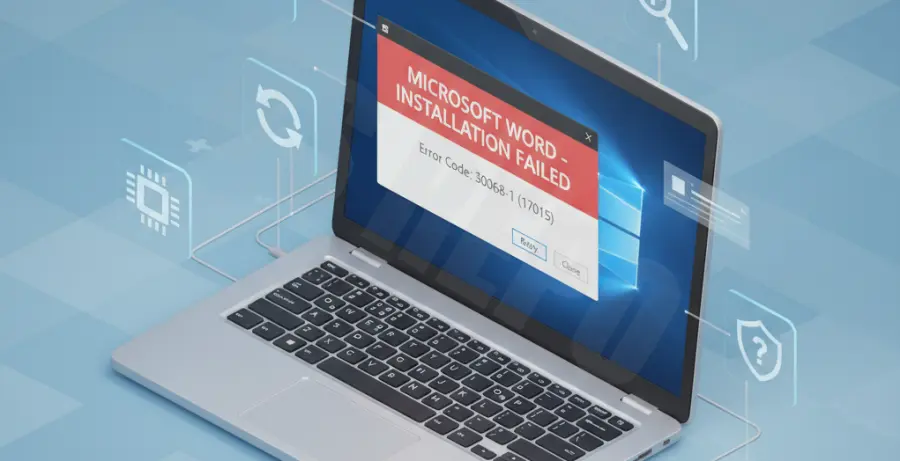
What is Word Installation Error 30068?
Word Installation Error 30068 is a common issue encountered when installing or updating Microsoft Office. It typically indicates that the installation process is blocked or that a background service is unresponsive.
This error often presents the message “Something went wrong” alongside the code 30068. It usually points to a problem with the Microsoft Office Click-to-Run service, which is responsible for managing the installation and updates of modern Office versions.
If this service is disabled or stuck, Windows cannot proceed with the file extraction or installation, resulting in a failed setup process.
Step-by-Step Solutions
1. Enable the Click-to-Run Service
The most frequent cause of error 30068 is that the Click-to-Run service is turned off. You must manually enable it to resume the installation.
Press Win + R, type services.msc, and hit Enter. Locate Microsoft Office Click-to-Run Service in the list.
Right-click the service and select Properties. Set the Startup type to Automatic, click Start, and then click OK.
2. Use the Command Prompt to Restart Services
If the GUI method is unresponsive, you can attempt to force-start the necessary services using the command line with administrative privileges.
# Check the status of the service
sc query clicktorunsvc

# Start the service if it is stopped
net start clicktorunsvc
3. Perform an Online Repair
If the service is running but the error persists, your local installation files may be corrupted. Use the built-in repair tool to fix them.
Go to Control Panel > Programs > Programs and Features. Select your Microsoft Office suite and click Change.
Choose Online Repair. This is more thorough than the Quick Repair as it replaces damaged files with fresh copies from Microsoft servers.
4. Disable Firewall and Antivirus Temporarily
Sometimes, third-party security software identifies the Office installer as a false positive. This blocks the connection to the deployment server.
Turn off your firewall and real-time antivirus protection for 15 minutes. Attempt the installation again immediately while the shields are down.
5. Uninstall and Reinstall Office
If all else fails, a clean installation is the best path forward. Use the Microsoft Support and Recovery Assistant (SaRA) tool to remove all traces of previous failed installations.
Once the tool has finished cleaning the registry and system folders, restart your computer. Log into your Microsoft account and download a fresh installer for Word.