| Goal | Key Command | Shortcut |
|---|---|---|
| Access TTY Console | N/A | Ctrl + Alt + F3 |
| Check Lock Status | sudo faillock --user [username] |
N/A |
| Reset/Unlock Account | sudo faillock --user [username] --reset |
N/A |
| Change Password | sudo passwd [username] |
N/A |
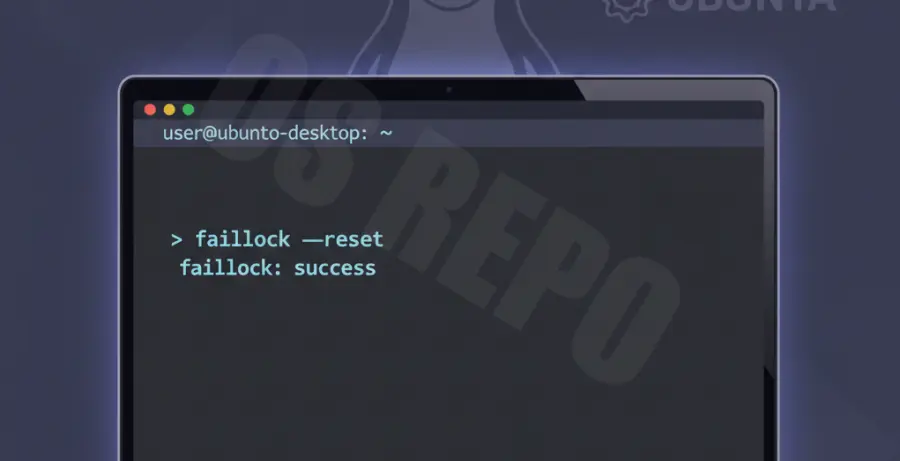
What is Unlocking an Ubuntu User Account from TTY?
Unlocking an Ubuntu user account from TTY refers to using a virtual console to regain access to your system when the graphical user interface (GUI) fails. This usually happens on Ubuntu 24.04 due to too many failed login attempts, which triggers the pam_faillock security module.
The TTY (Teletypewriter) is a text-only command-line interface that runs independently of your desktop environment. It allows administrators to execute repair commands, reset passwords, and clear authentication failure logs without needing a functional login screen.
Step-by-Step Solutions
Step 1: Access the TTY Interface
If you are stuck at the Ubuntu 24.04 login screen and cannot log in, press Ctrl + Alt + F3 on your keyboard. This will switch you from the graphical interface to a full-screen terminal prompt.
Step 2: Log In to TTY
Enter your username and password. If your specific account is locked, you may need to log in using a different administrative (sudo) account or boot into Recovery Mode to access a root shell.
Step 3: Check for Locked Accounts
Ubuntu 24.04 uses the faillock tool to manage login failures. To see if your account is specifically locked due to failed attempts, run:
sudo faillock --user your_usernameReplace “your_username” with your actual Linux username. If you see a list of recent failures, the account is likely restricted.
Step 4: Unlock the Account
To clear the authentication failure logs and immediately unlock the account, execute the reset command:
sudo faillock --user your_username --resetStep 5: Reset the Password (Optional)
If the account was locked because you forgot the password, you can change it manually while still in the TTY:
sudo passwd your_usernameEnter the new password twice when prompted. Note that the cursor will not move while you type for security reasons.
Step 6: Return to the Graphical Interface
Once the account is unlocked, you can switch back to the GUI login screen by pressing Ctrl + Alt + F1 or Ctrl + Alt + F2. You should now be able to log in successfully.