| Method | Difficulty | Time Required |
|---|---|---|
| Disable Hardware Acceleration | Easy | 2 Minutes |
| Run in Safe Mode | Intermediate | 3 Minutes |
| Check for Updates | Easy | 5 Minutes |
| Repair Office Suite | Moderate | 10 Minutes |
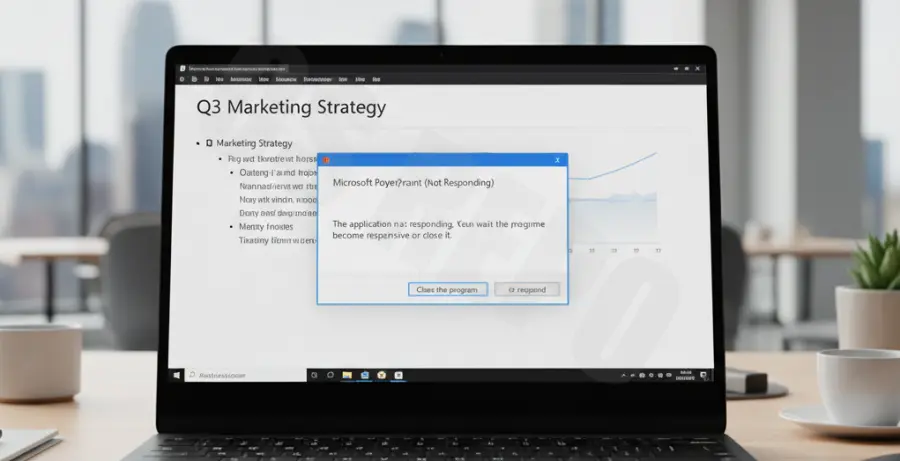
What is the “PowerPoint not responding during slideshow fix”?
The “PowerPoint not responding during slideshow fix” refers to a series of troubleshooting steps used to resolve application freezes when entering presentation mode. This issue often occurs when PowerPoint hangs, displays a white screen, or stops reacting to clicks during a live deck.
Typically, these crashes are caused by outdated graphics drivers, conflicting third-party add-ins, or corrupt installation files. Finding the right fix ensures your presentation runs smoothly without embarrassing interruptions.
Step-by-Step Solutions
1. Disable Hardware Graphics Acceleration
In many cases, your graphics card and PowerPoint may conflict, leading to a “Not Responding” error. Disabling hardware acceleration offloads the graphical processing back to the software.
- Open PowerPoint and click File > Options.
- Navigate to the Advanced tab.
- Under the Display section, check the box for Disable hardware graphics acceleration.
- Click OK and restart the application.
2. Open PowerPoint in Safe Mode
If an add-in is causing the crash, running in Safe Mode will bypass them. This helps isolate whether the software or an extension is at fault.
Press Win + R on your keyboard, type the following command, and press Enter:
powerpnt /safeIf the slideshow works in Safe Mode, you should manually disable your add-ins via File > Options > Add-ins.
3. Update Microsoft Office and Windows
Bugs are frequently patched in monthly updates. Ensure both your operating system and Office suite are current to avoid known compatibility issues.
- Open PowerPoint and go to File > Account.
- Select Update Options and click Update Now.
- Additionally, check Windows Update in your system settings.
4. Repair the Office Installation
If files are corrupted, the built-in repair tool can fix the application without losing your data. This is a highly effective “PowerPoint not responding during slideshow fix.”
- Close all Office programs.
- Open the Control Panel and go to Programs and Features.
- Right-click on Microsoft 365 (or your Office version) and select Change.
- Choose Quick Repair and follow the prompts.
5. Check File Size and Media Formats
High-resolution 4K videos or massive uncompressed images can cause the slideshow to hang. Try compressing your media by going to File > Info > Compress Media to reduce the strain on your system resources.