Symptoms & Diagnosis
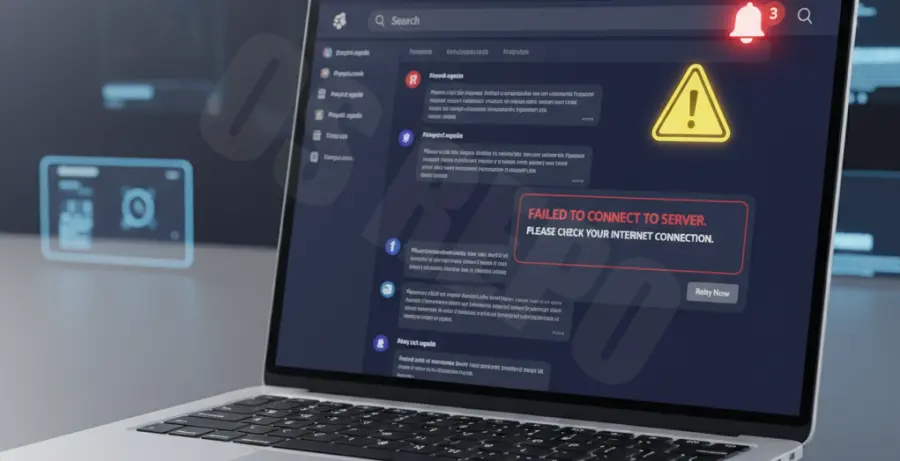
Slack notification errors manifest in several frustrating ways. You might notice that banners fail to appear, the app icon doesn’t show a red badge, or notification sounds are completely silent despite being enabled.
Diagnosis begins by identifying if the issue is isolated to one channel or across the entire workspace. If you see an error code like “0x800” or a message stating “Slack couldn’t connect to the notification service,” the issue likely stems from a corrupted cache or a conflict with your Operating System’s Focus settings.
Troubleshooting Guide
To resolve these issues, start with the most common fixes outlined in the diagnostic table below.
| Problem | Primary Solution |
|---|---|
| No Banners on Desktop | Check Windows Focus Assist or macOS Do Not Disturb settings. |
| Delayed Notifications | Clear app cache and check internet stability. |
| Specific Error Codes | Force restart Slack and update to the latest version. |
1. Reset Slack App Cache
Often, notification data becomes stuck in the local storage. Clearing the cache forces Slack to re-sync with the server and refreshes the notification handshake.
On desktop versions, you can use the “Help” menu, but for a deeper clean on Linux or via command line, you can target the cache directories directly:
# Standard command to clear local Slack configuration cache
rm -rf ~/.config/Slack/Cache/*
rm -rf ~/.config/Slack/Service\ Worker/CacheStorage/*
2. Verify Notification Schedule
Slack includes a “Notification Schedule” feature. If you are outside your set working hours, Slack will automatically suppress all alerts. Navigate to Preferences > Notifications > Notification Schedule to verify your active hours.
3. Check System Permissions
On mobile devices, ensure that Slack has “Background App Refresh” enabled. On Windows 10/11, go to Settings > System > Notifications and ensure Slack is toggled “On” and set to “High Priority.”
Prevention
The best way to prevent notification errors is to stay updated. Slack frequently releases patches for notification delivery protocols. Ensure you are running the latest version by clicking the “Check for Updates” option in the menu.
Additionally, avoid using multiple devices with conflicting “Do Not Disturb” schedules. If your mobile phone is set to silent, it may occasionally sync that status to your desktop app, suppressing alerts globally.
Lastly, use the built-in “Troubleshoot Notifications” tool found at the bottom of the Notifications preference pane. It runs a series of tests to ensure your device is capable of receiving pings from Slack’s servers.