| Problem | Common Causes | Quick Solution |
|---|---|---|
| Ubuntu 24.04 Blue Screen | Kernel panics, driver conflicts, hardware failure | Update drivers and check systemd-bsod logs |
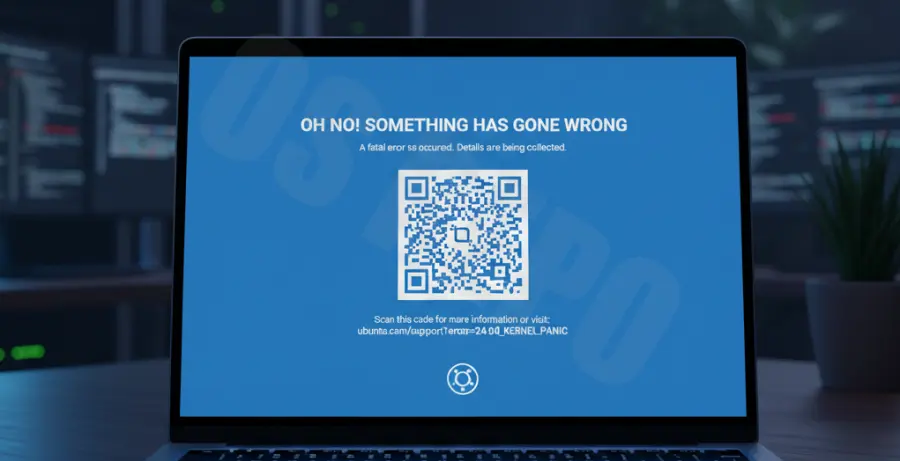
What is the Ubuntu 24.04 Blue Screen with QR Code?
The Ubuntu 24.04 “Noble Numbat” release introduced a new error handling feature known as the Blue Screen of Death (BSOD). This is powered by the systemd-bsod service.
Unlike the old cryptic terminal messages, this screen provides a readable error and a QR code. Scanning the QR code helps users quickly access documentation or log data related to the system crash.
This blue screen usually appears during a critical kernel panic. It is designed to make troubleshooting easier for desktop users and system administrators alike.
Step-by-Step Solutions to Fix Ubuntu 24.04 Blue Screen
Step 1: Update Your System via Recovery Mode
If you can reach the GRUB menu, boot into Recovery Mode. This allows you to repair broken packages that might be triggering the BSOD.
Run the following commands to ensure your system is fully patched:
sudo apt update
sudo apt full-upgrade
sudo apt autoremove
Step 2: Troubleshoot Nvidia Graphics Drivers
Incompatible or corrupted graphics drivers are a frequent cause of kernel panics in Ubuntu 24.04. Switching to a stable driver version often resolves the issue.
To list recommended drivers, use:
ubuntu-drivers devicesInstall the recommended proprietary driver using:
sudo apt install nvidia-driver-[version-number]Step 3: Analyze the Error Logs
The QR code points to the logs, but you can also inspect them manually. Use journalctl to view the logs from the previous failed boot session.
This command filters for high-priority errors that occurred during the last crash:
journalctl -b -1 -p 3..3Look for lines mentioning “Kernel panic” or specific hardware modules. This will tell you exactly which component failed.
Step 4: Disable the systemd-bsod Service (Optional)
If the blue screen itself is causing issues or you prefer the traditional text output, you can disable the service. This won’t fix the underlying crash but changes the visual error output.
sudo systemctl mask systemd-bsodStep 5: Check for Hardware Issues
If the blue screen persists across different kernel versions, check your RAM and SSD. Hardware instability often triggers the systemd-bsod.
Use the following command to check the health of your disk:
sudo smartctl -a /dev/sda