| Issue | Quick Solution |
|---|---|
| Keyboard Silent on iOS 18 | Toggle “Keyboard Feedback” in Settings. |
| Software Glitch/Bug | Perform a Force Restart. |
| Mute Switch Engaged | Turn off Silent Mode or Focus Mode. |
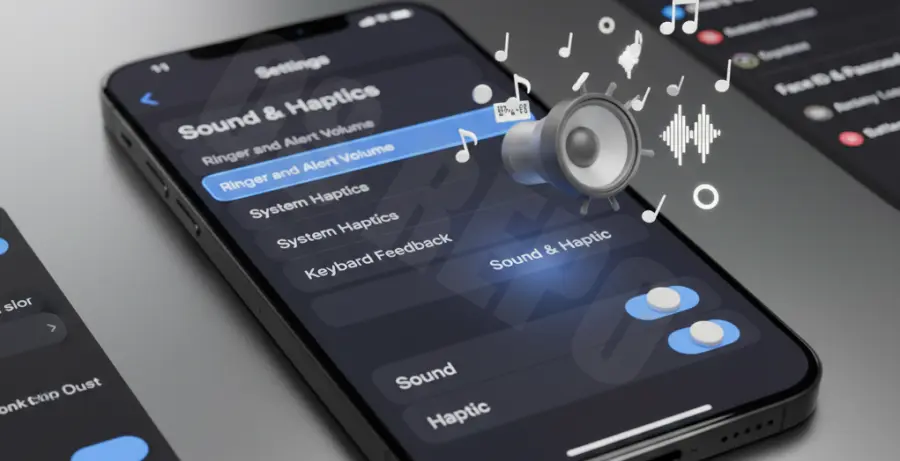
What is the iOS 18 keyboard sounds not working issue?
The iOS 18 keyboard sounds not working refers to a common glitch where the audible “click” heard while typing on the virtual keyboard disappears. This typically happens after an update to the latest firmware.
For many users, this is not a hardware failure. It is often a synchronization error between the system software and the audio engine. It can also be caused by deep-rooted settings in the Haptics menu or conflicting Focus filters.
Step-by-Step Solutions
1. Verify Keyboard Feedback Settings
The most common reason for silence is that the specific toggle for sound was disabled during the update process. You must manually verify that “Sound” is enabled under the feedback menu.
Settings > Sounds & Haptics > Keyboard Feedback > Toggle "Sound" ON2. Check Silent Mode and Action Button
If your iPhone is on Silent Mode, keyboard sounds are muted by default. Toggle the physical Ring/Silent switch on the side of your device to ensure it is in Ring mode.
If you have an iPhone 15 or 16 Pro, ensure your Action Button isn’t accidentally activating a silent profile or a Focus mode that suppresses system sounds.
3. Force Restart Your iPhone
A force restart clears the temporary cache and reinitializes the audio drivers. This often resolves intermittent sound bugs in iOS 18.
Press and quickly release Volume Up. Press and quickly release Volume Down. Then, hold the Side Button until the Apple logo appears.
4. Reset All Settings
If the keyboard remains silent, there may be a configuration conflict. Resetting all settings will revert system preferences to factory defaults without deleting your personal data.
Settings > General > Transfer or Reset iPhone > Reset > Reset All Settings5. Update to the Latest iOS 18 Patch
Apple frequently releases “point” updates (like iOS 18.0.1 or 18.1) to fix bugs reported by the community. Ensure your device is running the latest version to benefit from official software patches.